
Why is my Blink camera blinking red and not connecting?
Seeing your Blink camera blink red and not connect can be really frustrating. This red light is a key sign of connection problems. It makes users wonder what’s going on.
In this article, we’ll look at why your Blink camera might be showing a red light. We’ll also share some easy steps to fix it. Plus, we’ll talk about how to get help from Blink camera support. This way, you can keep your home safe and connected.
Key Takeaways
- The blinking red light indicates a connection issue with your Blink camera.
- Connectivity issues can stem from a variety of factors, including internet connection and battery life.
- Understanding LED indicators is key for solving problems.
- Regular maintenance can stop connection troubles.
- Blink camera support is there to help more.
Understanding Blink Camera LED Indicators
It’s key to know what the Blink camera LED indicators mean. Each light tells you something about your camera’s status. You can figure out what’s going on without looking at the manual.
A green light that blinks means your camera is working fine. A steady red light might mean it’s not connected. But a blinking red light is a big warning. It usually means there’s a problem with the connection or setup.
Knowing these LED signals helps you understand your Blink cameras better. It makes it easier to spot issues or keep your system running smoothly for security.
Common Reasons for a Red Blinking Light
A red blinking light on a Blink camera usually means there’s a problem. Knowing what these issues are can help fix them. This ensures your camera works right.
Internet Connection Issues
Bad Wi-Fi can really mess with your camera’s use. Blink cameras need a strong internet connection to work. If your Wi-Fi is weak or keeps dropping, you’ll see a red light.
Checking your Wi-Fi strength is key to keeping your camera running smoothly.
Low Battery or Power Issues
Low batteries are a common cause of the red light. Blink cameras use AA lithium batteries, which need to be changed often. Weak batteries mean your camera won’t work right, showing the red light.
Just check and swap out the batteries to fix this problem fast.
Camera Setup Mode
When your camera is in setup mode, you’ll see a red light too. This mode lets you connect to Wi-Fi and set up your camera. The light will blink until you’re all set up.
Hardware Issues
If the red light keeps showing up, it might be a hardware problem. You’ll need to check your camera closely. Look for any physical damage or parts that need fixing or replacing.
Why is my Blink camera blinking red and not connecting?
A blinking red light on your Blink camera usually means there’s a problem with connecting. This issue can come from many reasons for not connecting. It often means the camera can’t stay connected to your Wi-Fi, which it needs to work right.
One key thing to check is your internet connection. A weak or unstable Wi-Fi can stop the camera from working well. Make sure the camera is close to your Wi-Fi router and there’s nothing blocking the signal.
Other things like battery power or hardware problems can also cause issues. A low battery can make the camera act strangely. Finding and fixing these problems early can help keep your Blink camera running smoothly.
Steps to Troubleshoot a Blinking Red Light
Fixing a blinking red light on your Blink camera is often easy. Just follow these steps to find and fix the problem fast. Start by checking your internet connection. Then, check the battery and consider restarting the camera.
Check the Internet Connection
First, make sure your internet is strong. A weak Wi-Fi can mess with your Blink camera. Here’s how to improve your connection:
- Move your router closer to the camera.
- Use Wi-Fi extenders to boost the signal.
- Check for any network outages in your area.
Checking your internet connection can help fix the blinking red light issue.
Replace or Recharge Batteries
Then, check the batteries. Use high-quality AA lithium batteries for your Blink camera. If the batteries are low, replace or recharge them right away. Make sure your power supply works well, too, if you’re using a wired setup.
Restart the Camera
Lastly, try restarting your camera. Turn it off, wait a bit, and then turn it back on. This might fix any temporary problems causing the red light.
Fixing Internet Connection Problems
Having trouble with your Blink camera’s internet connection can be really annoying. It’s even worse when it shows a red blinking light. First, check if your router is working well. Make sure it’s not too busy with too many devices.
Try moving your camera closer to the router to get a better signal. Sometimes, just changing the camera’s spot can fix the problem. Also, restarting your modem and router can help with temporary issues.
If problems keep happening, think about getting Wi-Fi extenders. They can really help improve your home’s internet connection. A strong internet is key for your Blink camera to work its best.
Addressing Low Battery or Power Issues
Managing battery life is key for your Blink cameras to work well. Finding good low battery solutions is important, like for the Blink Mini. The right battery and enough power stop annoying connection problems.
Using the Right Battery Type
Choose high-quality AA lithium batteries for your Blink cameras. They last longer and work better than regular alkaline batteries. The wrong battery can cause constant low battery issues and hurt your camera’s use.
Ensuring Power Supply for Blink Mini
For Blink Mini users, a steady power supply is vital. Make sure your power adapter is plugged in and working right. If your camera is outside, solar panels can help keep the power steady. Always check your devices to avoid sudden power loss.
Resetting Your Blink Camera
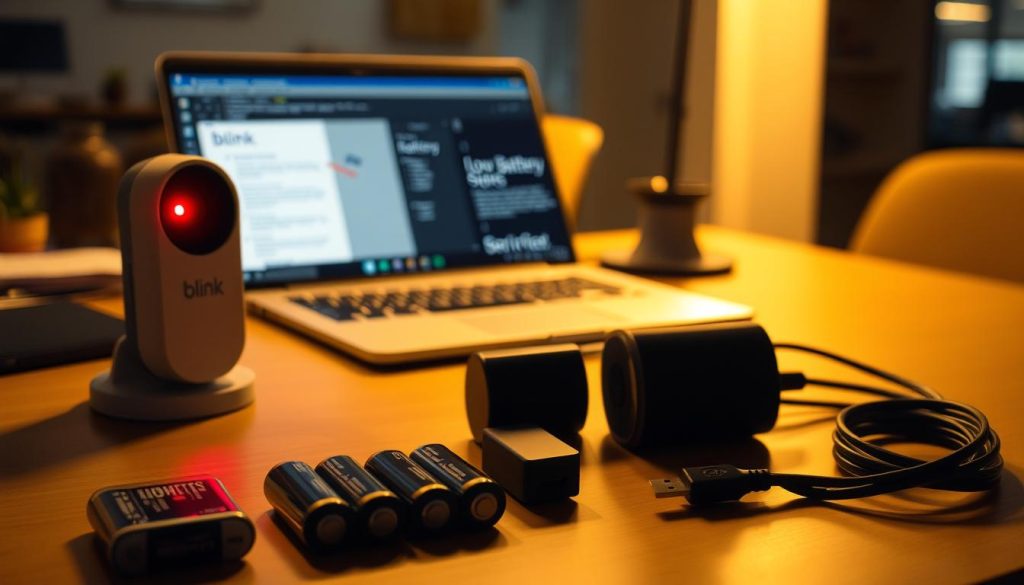
Having trouble with your camera? A factory reset might help. The Blink camera reset process is easy. It aims to get your device back to its original state.
First, find the reset button on your Blink camera. It’s usually on the back or bottom. Press and hold it for about 10 seconds. Watch the camera’s LED lights during this time.
At first, the lights will blink fast, showing the reset is happening. Once it’s done, the lights will blink steadily. This means your camera has reset successfully.
Resetting your camera is key in fixing issues. It’s great when other fixes don’t work. This step clears out any problems that might be causing connection issues. It lets your camera work right again after it’s set up.
Updating Firmware and Software
Keeping your Blink camera updated is key for the best performance. A regular firmware update can make your camera work better, fix problems, and boost security. You can easily update your device using the Blink app.
To start the update, open the Blink app on your phone. Go to the device settings and look for updates. The app will show you how to update. This keeps your camera stable and adds new features.
It’s important to keep your software current. Old versions can cause problems. Regular updates mean you get the latest tech, keeping your home safe.
Maintaining Optimal Performance with Best Practices
To keep your Blink camera working well, regular maintenance is key. Cleaning the camera lenses often improves picture quality. Just use a soft, dry cloth to wipe the lens and avoid dust and dirt.
Resetting your camera now and then is also a good idea. It can fix small issues and keep your camera running smoothly. Make sure your camera is close to your Wi-Fi router for better connection.
Checking your network speed and storage regularly is important too. Ensure your internet is fast enough for your camera. Also, delete old footage to free up space. For more tips, check out this resource for a full guide on your camera.
FAQ
Why is my Blink camera blinking red?
A blinking red light on your Blink camera often means there’s a problem with your Wi-Fi. It could also mean the camera is in setup mode. Sometimes, it’s a sign of hardware issues or a low battery.
What do the different LED indicators mean on a Blink camera?
Blink cameras use LED lights to show their status. A blinking green light means the camera is ready and working. A solid red light usually means there’s a Wi-Fi issue or the batteries are low. Check your camera’s manual for more details.
How can I resolve internet connection issues with my Blink camera?
To fix Wi-Fi problems, make sure your camera is close to your router. Try restarting your modem and router. If needed, use Wi-Fi extenders to improve your signal.
What should I do if my Blink camera has low battery?
If the battery is low, replace the AA lithium batteries with new ones. Make sure the polarity is correct. If you’re using a power adapter, check your power supply, like with Blink Mini.
How can I troubleshoot my Blink camera blinking red?
To fix a red blinking light, first check your Wi-Fi. Then, replace or recharge the batteries. Lastly, try restarting the camera to reset its functions.
What does it mean if my Blink camera is in setup mode?
A blinking red light often means your camera is in setup mode. This happens when you’re connecting it to Wi-Fi for the first time or after a reset.
How do I reset my Blink camera?
To reset your Blink camera, find the reset button. Press and hold it until the lights start flashing. This usually means the reset has started. It can fix issues if other steps don’t work.
Why is it important to keep my Blink camera firmware updated?
Keeping your Blink camera’s firmware and software updated is key. It ensures your camera works well and is secure. Outdated versions can cause bugs and connectivity problems. Always check for updates through the Blink app.
What best practices should I follow for maintaining my Blink camera?
To keep your camera in top shape, regularly clean the lenses and perform resets. Make sure your camera is well-positioned near your router. Also, keep an eye on your network speed and storage to avoid future issues.


