
How do I know if my CCTV is recording? Easy Check
Security cameras provide essential protection for homes and businesses. Verifying your system is actively working brings peace of mind. This guide offers simple methods to confirm recording status.
Modern surveillance systems use various indicators to show activity. Look for status lights, software alerts, or motion detection signals. These signs help confirm your camera is capturing footage.
Regular checks prevent security gaps from power or storage issues. Understanding these basic indicators requires no technical expertise. Stay confident your property remains protected at all times.
Key Takeaways
- Physical indicators like LED lights often show recording status
- Security camera software provides clear activity alerts
- Regular system checks prevent security gaps
- Motion detection features confirm camera operation
- Proper maintenance ensures continuous surveillance coverage
- Remote monitoring apps allow status checks from anywhere
- Understanding basic indicators requires no technical expertise
Understanding How Your CCTV System Operates
Every functional CCTV installation relies on three essential elements working together. These components form the backbone of your security setup. Understanding their roles helps maximize your system’s effectiveness.
Core Components of a CCTV Setup
Modern security systems consist of three main parts. Cameras capture video footage from monitored areas. Recorders store this data for future review. Monitoring software provides access to live feeds and recorded content.
These elements work together seamlessly. Cameras transmit video signals to recorders. Storage devices save the footage for specified periods. Software interfaces allow users to view and manage their security data.
The connection between these components ensures complete surveillance coverage. Proper installation maintains system integrity. Regular checks confirm all parts function correctly.
Continuous Recording vs. Motion-Activated Modes
Security cameras offer two primary recording methods. Continuous mode captures all activity without interruption. Motion-activated recording only saves footage when movement occurs.
Continuous recording provides comprehensive coverage. This method ensures no event goes undocumented. It requires substantial storage capacity and constant power supply.
Motion-activated recording offers storage efficiency. This mode only captures relevant activity. It reduces review time and storage requirements significantly.
Choosing the right mode depends on your security needs. High-traffic areas often benefit from continuous recording. Low-activity zones work well with motion detection.
Most modern systems allow mode customization. Users can adjust sensitivity settings for motion detection. This reduces false alarms from minor movements like pets or shadows.
Recording modes affect system indicators differently. Continuous recording typically shows constant activity lights. Motion-activated modes may display intermittent signals during detection events.
Access your system’s menu to verify current settings. Manufacturer manuals provide specific navigation instructions. Proper configuration ensures optimal security coverage for your property.
Key Physical Indicators Your CCTV is Recording
Your security system provides visible and audible signals when actively capturing footage. These physical indicators offer immediate confirmation without technical tools. Learning to recognize these signs ensures your surveillance remains operational.
Interpreting LED Light Signals and Colors
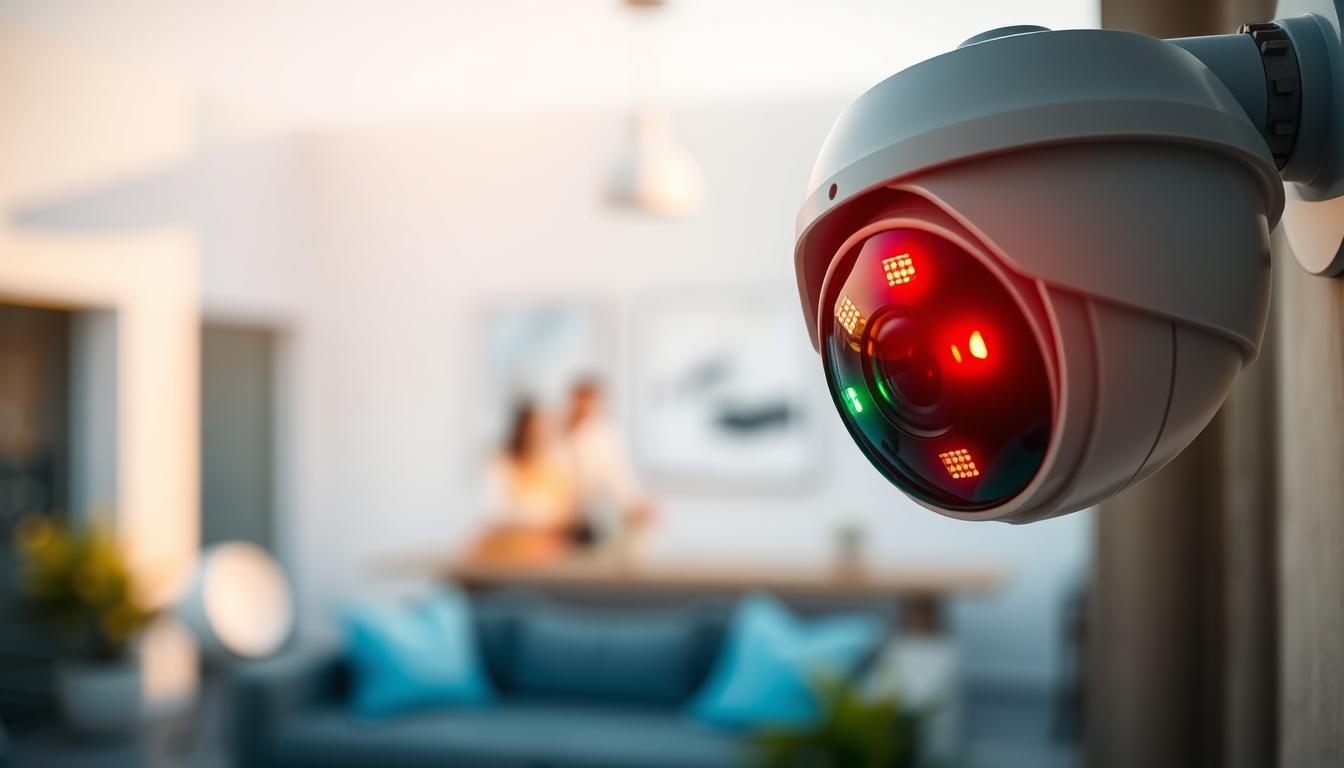
Modern security cameras use LED lights to communicate status. A steady red light typically indicates active recording. Blinking lights often signal standby mode or connectivity issues.
Infrared lights appear as red dots in low-light conditions. These confirm night vision functionality. Covering the camera lens triggers these sensors for testing.
Different manufacturers use varying color codes. Some systems employ green lights for normal operation. Amber indicators might show system boot-up or network activity.
Fake cameras often feature unrealistic blinking patterns. Authentic systems use purposeful light sequences. Always consult your camera’s manual for specific indicator meanings.
Observing Camera Movement and Audible Cues
Pan-tilt-zoom cameras demonstrate activity through movement. Automatic rotation confirms patrol functions are active. These cameras may emit low buzzing sounds during operation.
Motion detection triggers distinct audible alerts. Many systems beep when capturing movement. These sounds provide additional confirmation of recording status.
Physical inspection reveals operational details. Warm housing suggests recent activity. Lens focus adjustments indicate system responsiveness.
Regular observation establishes normal patterns. Note typical sounds and movements during operation. Changes in these patterns might indicate system issues requiring attention.
How do I know if my CCTV is recording? Using Software and Apps
Remote access technology transforms how property owners monitor their security systems. Digital interfaces provide immediate status confirmation without physical inspection. These tools offer the most reliable method for verifying active surveillance.
Checking Live Feeds and Status via Monitoring Software
Professional monitoring software serves as your system’s command center. This interface displays real-time footage from all connected cameras. Live video confirmation means your equipment is actively capturing events.
Dashboard indicators show recording status through color-coded symbols. Green checkmarks typically indicate normal operation. Red warnings signal potential issues requiring attention.
Access your software by entering secure login credentials. Navigate to the live view section for immediate verification. Most systems display timestamp overlays confirming real-time capture.
Regular software updates maintain optimal performance. Outdated versions may develop glitches affecting recording reliability. Automatic update features ensure continuous protection.
Utilizing Mobile Apps for Remote Verification
Mobile applications provide freedom to check cameras from any location. These apps mirror desktop software functionality on smartphones and tablets. Instant access brings peace of mind while away from your property.
Push notifications alert users to motion detection events. These alerts confirm system responsiveness to activity. Customizable settings allow filtering notifications by importance.
Cloud storage integration enables remote footage review. Archived videos can be accessed through app interfaces. This feature verifies historical recording functionality.
Connectivity issues may prevent live feed display. Check internet connections on both camera and viewing devices. Restarting applications often resolves temporary glitches.
Modern security systems offer comprehensive digital verification methods. Software interfaces and mobile apps provide immediate status confirmation. These tools ensure your surveillance remains active and reliable.
Conducting a Thorough Physical Inspection
Hands-on hardware checks ensure your surveillance system captures clear footage consistently. Regular physical examinations prevent unexpected failures and maintain optimal security camera performance. These routine inspections verify all components function properly.
Physical maintenance extends equipment lifespan significantly. It identifies potential issues before they affect recording quality. Follow manufacturer guidelines for safe handling during all inspections.
Checking Power Supplies and Cable Connections
Power stability is crucial for uninterrupted camera operation. Examine all power adapters and cables for visible damage. Look for frayed wires, loose plugs, or overheating signs.
Check each connection point for secure attachment. Loose cables disrupt video transmission and recording. Tighten any loose connectors to ensure reliable data transfer.
Common power issues include:
- Frayed or damaged electrical wires
- Loose power adapter connections
- Overheating power supply units
- Corroded connector points
Address these problems immediately to prevent system failures. Regular power checks maintain continuous surveillance coverage.
Inspecting the Camera Lens and Housing for Damage
Camera lens clarity directly affects video quality. Examine lenses for dirt, smudges, or scratches. Clean lenses gently with appropriate materials to maintain clear footage.
Housing integrity protects internal components from environmental damage. Check for cracks, water damage, or weather-related wear. Secure mounting prevents vibration-related issues.
Essential inspection points include:
- Lens cleanliness and clarity
- Housing structural integrity
- Weather sealing effectiveness
- Mounting bracket stability
Proper maintenance ensures your security cameras deliver optimal performance. These physical checks should become part of regular security routines.
Verifying Audio and Digital Display Status
Modern security systems offer multiple verification methods beyond physical indicators. Audio features and digital interfaces provide additional confirmation of surveillance activity. These tools enhance monitoring capabilities for comprehensive property protection.
Confirming Audio Recording Capabilities
Many security cameras include built-in microphones for audio capture. Testing these features requires checking both clarity and recording range. Speak at normal volume from various distances to assess performance.
Microphone sensitivity varies between camera models. Higher-end systems typically offer better audio quality and range. Always consult your equipment manual for specific capabilities.
Legal considerations affect audio recording in many regions. Some areas require consent for audio surveillance. Research local regulations before enabling these features.
Audio testing should include background noise assessment. Systems should distinguish between important sounds and ambient noise. Proper configuration prevents unnecessary recordings while capturing crucial audio evidence.
Reading On-Screen Status Indicators and Menus
Digital displays provide immediate visual confirmation of camera status. Green indicators typically signal active recording and normal operation. Red symbols often indicate errors or system issues requiring attention.
On-screen menus offer access to detailed system information. Navigation typically involves using directional buttons or touchscreen interfaces. These menus display recording settings, storage status, and activity logs.
Status icons vary between manufacturers but follow general patterns. Recording activity often shows as a blinking red dot or camera icon. Motion detection may display as a waving person symbol or similar indicator.
Modern systems allow quick status checks through connected monitors. Direct viewing provides real-time confirmation without software applications. This method offers reliable verification when internet connectivity experiences issues.
Understanding display symbols enables effective troubleshooting. Familiarity with your system’s visual language helps identify problems quickly. Regular interface checks maintain optimal security camera recording performance and reliability.
Testing Camera Functionality and Reviewing Footage
Active verification through testing provides the most reliable confirmation of your surveillance system’s performance. This hands-on approach eliminates guesswork and delivers concrete evidence of proper operation. Regular testing routines catch potential issues before they compromise your security coverage.
Performing a Test Recording and Playback
Conducting test recordings offers definitive proof of camera functionality. Walk through the camera’s field of view while performing noticeable actions. Wave your arms or wear distinctive clothing to create identifiable movement patterns.
Access your storage system immediately after the test. Navigate to the most recent files using your monitoring software. Look for the test sequence in the recorded footage.
Review the video quality during playback. Check for clear image resolution and proper frame rates. Ensure the footage shows continuous movement without gaps or skips.
Audio tests require speaking at normal volumes during recording. Playback should capture clear, understandable sound. Background noise should not overwhelm primary audio sources.
Successful test recordings confirm multiple system aspects. They verify camera operation, storage functionality, and playback capabilities. Regular testing provides peace of mind about your security coverage.
Checking Time Stamps on Recorded Video Clips
Accurate time stamps are crucial for effective surveillance documentation. They provide context for events and maintain evidential integrity. Verify timestamps match your current local time precisely.
Time discrepancies indicate potential system issues. Check for differences between the camera’s clock and actual time. Even small variances can create confusion during incident reviews.
Synchronization problems often stem from power interruptions. Cameras may revert to default settings after outages. Regular time checks prevent chronological inconsistencies.
Modern systems offer automatic time synchronization features. Enable network time protocol (NTP) settings when available. This maintains accurate timestamps across all cameras consistently.
Document any timestamp errors immediately. Note the discrepancy size and duration. This information helps technicians diagnose underlying system problems.
Proper timestamp maintenance ensures reliable security documentation. It creates trustworthy records for both monitoring and evidence purposes. Consistent time accuracy supports overall system reliability.
Advanced Methods: Using Electronic Detectors
Professional-grade detectors can identify active camera signals through frequency scanning. These devices provide technical confirmation beyond visual indicators. They work for both your security system and potential hidden cameras.
Electronic bug detectors scan electromagnetic frequencies around your property. They detect radio signals emitted by operational surveillance equipment. This technology offers reliable verification of recording status.
How Bug Detectors Identify Active Camera Signals
These devices work by scanning specific frequency ranges used by security cameras. Most systems emit balanced signals during video transmission. Detectors identify these patterns through sophisticated scanning technology.
Modern detectors feature adjustable sensitivity settings. Users can fine-tune detection ranges for different environments. Higher settings catch weaker signals from distant cameras.
Key detection capabilities include:
- Radio frequency identification from 1MHz to 6GHz
- Signal strength measurement for distance estimation
- Audio alerts for detected surveillance activity
- Visual indicators showing signal presence and strength
Proper operation requires following manufacturer guidelines. Most devices need calibration before first use. Regular updates maintain detection accuracy against new camera models.
Leveraging Technology for Peace of Mind
Electronic detectors provide confidence in your security coverage. They verify both obvious and hidden camera operation. This technology complements traditional verification methods.
These tools are particularly valuable in sensitive environments. Business offices and private spaces benefit from additional verification. They help ensure complete surveillance coverage without blind spots.
Choosing reliable detectors involves considering several factors:
- Frequency range coverage for different camera types
- Detection sensitivity and accuracy ratings
- Battery life and portability features
- User reviews and professional recommendations
Regular sweeps with electronic detectors maintain security awareness. Combine this method with physical inspections and software checks. Comprehensive verification ensures your system functions optimally at all times.
This advanced approach brings technical certainty to security monitoring. It represents the next level in surveillance verification technology. Electronic detection provides undeniable proof of camera operation and recording status.
Common CCTV Recording Issues and Simple Fixes
Even reliable security systems sometimes experience technical problems. These issues can interrupt your camera recording and create security gaps. Understanding common problems helps maintain continuous surveillance coverage.
Most security camera problems fall into two main categories. Software and storage issues affect digital functionality. Hardware and power problems impact physical components.
Quick identification and resolution prevent extended downtime. Many fixes require minimal technical knowledge. Regular maintenance reduces the frequency of these issues.
Addressing Software Glitches and Storage Problems
Software issues often manifest as frozen screens or error messages. Outdated firmware causes many common glitches. Regular updates maintain system stability and security.
Storage problems typically show as “disk full” warnings. These alerts indicate limited recording capacity. Managing storage space ensures continuous video capture.
Simple software solutions include:
- Updating camera firmware through manufacturer portals
- Performing system reboots to clear temporary glitches
- Checking storage allocation settings in management software
- Deleting old footage to free up space
- Adding external hard drives for expanded capacity
Cloud storage options provide flexible alternatives. These services automatically manage space allocation. Subscription plans offer various storage tiers.
Network connectivity affects software performance. Ensure stable internet connections for remote access. Wired connections often provide more reliability than wireless.
Troubleshooting Hardware Malfunctions and Power Failures
Hardware problems include camera failures and connection issues. Physical damage often requires professional repair. Regular inspections identify potential problems early.
Power interruptions completely stop security camera recording. These outages create critical security vulnerabilities. Backup power solutions maintain operation during blackouts.
Common hardware fixes involve:
- Inspecting cables for damage or loose connections
- Testing individual cameras by swapping components
- Cleaning camera lenses for clear video quality
- Checking power supplies for consistent output
- Replacing damaged cameras or recording equipment
Uninterruptible power supplies (UPS) protect against outages. These devices provide temporary power during interruptions. Generator systems offer longer-term backup solutions.
Environmental factors affect hardware performance. Extreme temperatures can damage camera components. Weatherproof housing protects outdoor security cameras.
Professional support resolves persistent hardware issues. Technical teams diagnose complex problems. Manufacturer warranties often cover component replacements.
Regular maintenance prevents most common issues. Simple checks ensure your security system remains operational. These practices provide peace of mind about your property’s protection.
Ensuring Ongoing CCTV Reliability and Security
Maintaining your surveillance system’s reliability requires consistent care and attention. Regular maintenance prevents unexpected failures and extends equipment lifespan significantly.
Establish monthly routines for lens cleaning and software updates. Check storage capacity and inspect hardware connections during these sessions. Document all maintenance activities for future reference.
Quality components ensure long-term performance. Professional installation reduces potential issues. Stay informed about new security threats and system updates.
These practices provide uninterrupted protection and peace of mind. Your well-maintained security cameras deliver reliable coverage when needed most.
FAQ
What are the main signs that my security camera is actively recording?
Look for LED indicator lights—often red or green—that show power and activity. Many cameras also emit faint sounds or move slightly when operational. Check your monitoring software or mobile app for live feed confirmation and recording status.
How can I tell if my CCTV system is set to continuous recording or motion detection mode?
Access your system’s software or mobile app settings. Look for recording mode options like “Continuous,” “Motion-Activated,” or “Schedule.” Continuous recording saves footage nonstop, while motion-activated modes only record when movement is detected.
Can I verify my security camera is working without using the software?
Yes. Physically inspect the camera for lit LED status lights, listen for operational hums, and ensure all cables are connected. Some systems also display on-screen menus or status indicators directly on connected monitors.
What should I do if my CCTV camera isn’t recording properly?
First, check power and cable connections. Verify storage space isn’t full and that settings like motion detection are correctly configured. Restart the system or update its software if needed. For persistent issues, consult the user manual or contact support.
Are there tools to detect hidden or covert security cameras?
Yes, electronic bug detectors can identify active camera signals by detecting RF emissions or lens reflections. These devices help locate hidden surveillance equipment in private spaces, providing an extra layer of security awareness.
How can I test my CCTV camera’s recording and playback features?
Perform a test recording by triggering motion or manually starting a capture. Then, review the footage through your system’s software or app. Check for clear video, accurate time stamps, and proper audio if supported.
Why is my security camera’s red light on, but I can’t access the footage?
A red light usually indicates power and activity, but inaccessible footage may signal storage issues, software glitches, or connectivity problems. Check your storage device, network connections, and software status for errors.
What maintenance steps ensure my CCTV system remains reliable?
Regularly inspect cameras for damage, clean lenses, verify cable connections, and update system software. Test recording functionality periodically and ensure adequate storage space. Address any issues promptly to maintain security coverage.


