
Troubleshooting: Why can’t I see my CCTV on my phone?
Remote access to your security cameras is a core feature of modern surveillance. When the live feed on your mobile device fails to load, it can feel like a major setback. This disruption often stems from a simple breakdown in the digital chain linking your camera to your phone.
Concrete walls in local HDB flats or high humidity can weaken Wi-Fi signals. This is a common starting point for many connectivity problems. A systematic approach is needed to diagnose the issue correctly.
This guide provides a clear, step-by-step method to restore your view. We will move from checking basic network health to reviewing specific app and device settings. The goal is to empower you to fix the problem and regain control of your security system.
Key Takeaways
- A failed mobile connection usually points to a network, power, or software issue.
- Diagnosis should start with the most common problems first, like Wi-Fi strength.
- Both the camera device and the mobile application need to be configured properly.
- Environmental factors in Singapore, like building materials, can affect performance.
- A methodical reboot of your equipment often resolves temporary glitches.
- Keeping your camera’s firmware updated is crucial for stability and security.
- Reliable remote viewing depends on a stable connection at both the camera and phone ends.
Introduction: Regaining Remote Access to Your Security
A broken link in the chain between camera lens and phone screen creates immediate vulnerability and concern. Modern security systems promise constant vigilance through remote viewing. When that promise falters, your access security feels compromised.
Today’s property monitoring depends on this digital connection. Your smartphone serves as a portable monitor for live feeds. A failure here isn’t just inconvenient—it leaves you blind to real-time events at your home or business.
Statistics reveal a clear pattern. Research indicates network misconfigurations cause over 67% of all access failures.
Network configuration errors account for more than two-thirds of mobile surveillance disruptions.
This data is encouraging. It means most problems have logical, fixable causes. You don’t need advanced technical skills to restore your view.
We understand the frustration. That spinning loading icon where your camera feed should be triggers anxiety. This guide transforms that frustration into actionable solutions.
Our method follows a systematic approach:
- Begin with the simplest fixes, like rebooting equipment
- Progress to network diagnostics and app settings
- Address environmental factors unique to Singapore
- Provide escalation paths for persistent issues
Each step builds on the last. This structure ensures you don’t waste time on complex solutions when a simple reboot might work. For readers in Singapore, local expertise is available.
Specialists like Wen Hong understand regional challenges. Concrete HDB walls and tropical humidity can affect security cameras. Local support tailors solutions to these specific conditions.
Your mobile app is the gateway to your property. Ensuring its reliable operation is crucial. Most connectivity issues stem from a handful of common sources.
By the end of this guide, you’ll have a clear roadmap. You’ll know how to diagnose problems methodically. More importantly, you’ll regain that vital visual connection to what matters most.
Why Can’t I See My CCTV on My Phone? The Core Question
When the live feed vanishes from your smartphone, the root cause typically traces back to two fundamental areas. Industry data reveals that nearly 80% of mobile monitoring failures link directly to network or power problems. Understanding these core issues provides the fastest path to restoring your view.
These are not complex technical mysteries. Most disruptions stem from simple glitches in basic infrastructure. A methodical check of these two areas resolves the majority of access problems.
Network Configuration: The Most Common Culprit
Your security camera depends on a stable digital pathway to communicate. Any break in this pathway creates immediate connection issues. The network forms the backbone of remote viewing capability.
Several specific network problems frequently occur:
- IP Address Conflicts: Approximately 10% of device connection failures involve IP clashes. Multiple devices receiving the same address creates communication chaos. A simple router reboot often clears these temporary glitches.
- Weak Wi-Fi Signals: Structural elements dramatically affect wireless performance. Concrete walls, common in Singapore HDB flats, can weaken signals by 40% or more. This causes frequent dropouts that prevent cameras from maintaining stable links.
- Router Configuration Errors: Incorrect settings on your camera router can block necessary data ports. Firewall rules or Quality of Service (QoS) settings might inadvertently prioritize other traffic over surveillance streams.
Environmental factors in Singapore exacerbate these issues. Dense building materials and high humidity further challenge wireless reliability. Always verify that both your camera and phone share the same network for local access.
Power Supply Issues: An Overlooked Problem
While network problems are obvious, power instability often goes unnoticed. Fluctuating electricity causes 23% of camera offline errors. The camera hardware requires consistent, adequate power to function properly.
Power-related failures manifest in several ways:
- Insufficient Adapter Power: Using low-quality or mismatched power adapters is a common mistake. These units overheat and cut power unexpectedly. They fail to deliver the consistent voltage modern cameras demand.
- Voltage Fluctuations: Electrical systems in older HDB flats experience noticeable voltage drops. These brief power sags trigger camera reboots. The device goes offline precisely when you need it most.
- PoE Connection Problems: Power over Ethernet setups add another failure point. Loose Ethernet cables or faulty injectors interrupt both data and power simultaneously. This creates the appearance of a network failure when the real issue is power delivery.
Many users troubleshoot for hours on network settings while overlooking the power adapter. Check that all physical connections are secure and undamaged. Verify you’re using the manufacturer’s recommended power supply.
Always begin troubleshooting with these two fundamental checks. Confirm network stability and power integrity before exploring more complex solutions. This systematic approach saves time and restores your mobile access efficiently.
Understanding Security Camera Connectivity Basics
Successful mobile surveillance depends on understanding the fundamental communication protocols that link physical cameras to virtual interfaces. This knowledge transforms confusing error messages into clear diagnostic clues. Grasping these basics makes every troubleshooting step more logical.
Modern systems create a seamless bridge between hardware and software. Over 92% of initial setups demand that both devices share the same network during pairing. This requirement ensures a stable foundation for all future remote access.
How Your Camera and Phone Communicate
The connection pathway follows a specific sequence. First, your security camera links to your home Wi-Fi router. Your phone’s mobile app then establishes communication through this network.
Initial pairing typically uses one of two methods. QR code scanning is the most common approach, with studies showing a 78% success rate. Manual entry of Wi-Fi credentials serves as a reliable backup option.
This app connection can operate in two modes. Local streaming happens directly between devices on the same network. Cloud-based access routes data through secure manufacturer servers when you’re away from home.
Using the official manufacturer application is non-negotiable. Brands develop specific software like Hik-Connect or DMSS for their hardware. These apps ensure full compatibility, security updates, and feature access.
The Critical Role of a Matching Network
For local viewing, your phone and camera must inhabit the same digital neighborhood. They need to be on identical Wi-Fi networks. Being on different bands of the same router usually works fine.
Brands like Google Nest enforce strict network matching during installation. This prevents configuration errors that lead to failed camera connectivity. The system verifies that both endpoints can communicate directly.
Network segmentation creates invisible barriers. Guest networks and VLANs isolate devices for security. Unfortunately, this isolation can block your cameras connect attempt if not configured properly.
Mismatched IP address ranges produce similar results. Your phone cannot find the camera on the network. Understanding this principle explains many “device offline” errors.
This foundational knowledge empowers users. You can now interpret why certain fixes work. The logic behind rebooting routers or re-pairing devices becomes clear.
Step 1: Diagnosing Your Home Network Stability
Before adjusting complex settings, begin your troubleshooting journey by examining your wireless network’s performance. This foundation supports all your security devices. A stable connection prevents most common viewing problems.
Your Wi-Fi network acts as the digital highway for video data. When this highway develops potholes, your feed stutters or disappears. Concrete walls in local HDB flats create significant barriers.
These dense materials can reduce signal strength by over 40%. Humidity in Singapore’s climate also affects wireless performance. Systematic diagnosis identifies these weak points.
Testing Wi-Fi Signal Strength at the Camera
Measure the wireless power at your camera’s exact location. Signal strength is measured in decibel-milliwatts (dBm). Optimal levels for reliable streaming range from -30 to -67 dBm.
Readings below -70 dBm often cause connectivity issues. Weak signals make it hard for cameras to maintain a steady link. Your phone might show perfect bars while your camera struggles.
Use free smartphone apps like Wi-Fi Analyzer or NetSpot. These tools create visual heatmaps of your home’s coverage. They reveal dead zones behind thick walls or metal appliances.
For Singapore homes, pay special attention to corners and rooms farthest from the camera router. Reinforced concrete in HDB blocks severely attenuates signals. Consider these improvement strategies if readings are poor.
- Reposition your router centrally, elevated off the floor
- Install Wi-Fi extenders to bridge coverage gaps
- Upgrade to a mesh network system for seamless roaming
- Use Powerline adapters to bypass wireless obstacles entirely
Reducing Interference from Other Devices
Many household gadgets compete on the crowded 2.4GHz band. Microwaves and neighboring networks cause 22% of all wireless dropouts. This interference silently sabotages your camera’s performance.
Common culprits include cordless phones, baby monitors, and Bluetooth speakers. Even smart lights and other IoT devices consume precious bandwidth. Each gadget adds noise to your wireless environment.
Place security cameras away from these interference sources. Maintain at least three feet of separation from microwaves and cordless phone bases. This simple spacing can dramatically improve signal strength.
Advanced configuration offers more robust solutions. Switch your camera to a less congested Wi-Fi channel. Most routers auto-select channels, but manual choice often works better.
If your equipment supports it, use the cleaner 5GHz band. This frequency has shorter range but faces far less interference. Create a dedicated network solely for your surveillance system.
Research shows segregating IoT devices onto a guest network improved stability by 40%. This isolation gives your cameras priority access to bandwidth. Your video streams won’t compete with smart bulbs or voice assistants.
Start with these network diagnostics. They establish a solid foundation for all subsequent troubleshooting steps. A healthy wireless environment eliminates the most common root cause of failed mobile access.
Step 2: Verifying Camera Power and Hardware
A stable power source forms the silent foundation that keeps your visual monitoring system operational around the clock. While network issues grab attention, electrical problems cause nearly one-quarter of all access failures.
Research indicates power fluctuations trigger 23% of camera offline errors. This step moves beyond digital diagnostics to examine physical infrastructure. Your equipment needs consistent energy to transmit video data reliably.
Begin with a visual inspection of your setup. Check if all power indicator lights glow steadily on each unit. Look for signs of overheating around adapters or transformers.
Checking for Insufficient or Fluctuating Power
Generic power adapters often fail to deliver stable voltage. They may provide enough energy for basic operation but struggle during peak demand. This leads to random reboots that disrupt the live feed.
Use the manufacturer’s recommended power supply whenever possible. These units match the specific electrical requirements of your security camera. Off-brand alternatives risk underpowering critical components.
For technical users, a multimeter offers precise diagnostics. Test wall outlets or PoE injectors for correct, stable output. Most cameras require either 12V DC or 48V Power over Ethernet.
Voltage sags as small as 10% can trigger protective shutdowns in sensitive surveillance electronics.
Singapore’s electrical grid experiences occasional fluctuations. Older HDB flats may have wiring that compounds these variations. Consider using a voltage regulator for critical installations.
Ensuring Physical Connections Are Secure
Loose wiring interrupts both data and power transfer simultaneously. This creates confusing symptoms that mimic network failures. The problem is purely mechanical.
Physically inspect every connection point. Ensure power adapters plug firmly into both the wall outlet and camera port. Gently tug on cables to test their security.
Power over Ethernet systems demand extra vigilance. A single Ethernet cable carries both data and electricity. Verify proper seating at both the camera and network switch.
Look for damaged cables or corroded connectors. Environmental factors in Singapore accelerate wear. High humidity promotes oxidation on metal contacts.
Follow this inspection checklist:
- Confirm all indicator lights show normal operation
- Check adapter temperature during continuous use
- Inspect cable integrity from end to end
- Test wall outlet with another device
- Secure loose connections with appropriate fasteners
These hardware checks eliminate physical variables before addressing software configurations. A properly powered camera establishes the baseline for all subsequent troubleshooting steps.
Step 3: Configuring Your Mobile App Correctly
Incorrect smartphone software settings account for one-third of all remote viewing failures. The interface on your phone must be properly tuned to receive the video stream. This step moves from hardware checks to software optimization.
Research shows using third-party software causes 33% of viewing failures. Manufacturer-designed applications contain specialized code for reliable communication. Your mobile app acts as the final bridge between camera and screen.
Downloading the Official Manufacturer App
Always obtain your surveillance software from official sources. Different brands require specific applications for full functionality. Hikvision systems need the Hik-Connect app app, while Dahua cameras require DMSS.
Other popular brands have their own dedicated software. Reolink, Google Nest, and AlfredCamera each provide proprietary applications. These are optimized for their specific hardware and features.
Download apps only from the Google Play Store or Apple App Store. Manufacturer websites also provide secure download links. Avoid third-party stores that may offer modified or outdated versions.
Creating a secure account within the application is crucial. Use a strong, unique password for your surveillance account. Enable two-factor authentication if the app settings offer this security feature.
This extra layer protects your live feed from unauthorized access. It ensures only you can view the camera stream on your device.
Setting App Permissions and Background Data
Modern smartphones aggressively optimize battery life by limiting app activity. This often breaks the continuous app connection needed for surveillance. You must adjust your device’s power management settings.
For Android devices, disable battery optimization for your camera application. Find this in Settings > Apps > [Your Camera App] > Battery. Select “Unrestricted” to allow background data access.
iOS users should enable “Always” location access for some surveillance apps. Go to Settings > Privacy > Location Services. Find your camera app and choose the appropriate permission level.
Background data must remain enabled for push notifications and live streaming. Check your phone’s data usage settings for the application. Ensure it’s not restricted when on mobile networks.
Grant all necessary app permissions during initial setup. Most surveillance software needs Camera, Microphone, and Location access. Review these permissions regularly for security.
Singaporean users on local networks face additional considerations. StarHub or Singtel routers may have “Data Saver” or firewall settings. Whitelist your camera application in these network controls.
This ensures the app can communicate freely with your security system. It prevents unnecessary blocking of video data packets.
Correct app configuration prepares your phone’s software for stable monitoring. The interface becomes ready to maintain a reliable link to your cameras. This completes the software side of your troubleshooting process.
Resolving the “Camera Offline” App Error
The “Camera Offline” notification represents one of the most frustrating experiences for remote monitoring system owners. This message indicates a complete breakdown in the digital pathway between your hardware and phone. Your visual security coverage suffers an immediate gap.
Research reveals a systematic reboot fixes 41% of these connectivity issues. A proper sequence clears cached data and renews network addresses. This method often brings a seemingly dead device back online within minutes.
The Proper Sequence for Rebooting Camera and Router
Follow this 90-second cycle for maximum effectiveness. First, unplug your security camera from its power source. Wait a full 30 seconds before reconnecting the device.
Allow the unit 60 seconds to initialize completely. Listen for startup sounds and watch the LED indicators. A solid green light usually means normal operation. A blinking red light often signals a network problem.
Next, restart your camera router. Press and hold its power button for 10 seconds. This ensures a clean shutdown and fresh startup. The order matters—camera first, then router.
A 90-second reboot cycle resolves 41% of mobile surveillance disconnections by clearing network caches and renewing IP assignments.
This process forces both devices to establish fresh connections. It clears temporary glitches in the communication chain. Your access security depends on this fundamental stability.
Reconnecting Your Camera to the Wi-Fi Network
If the rebooting camera procedure doesn’t work, examine network settings. DHCP lease times significantly impact connection stability. Configure your router to renew these leases every 1440 minutes.
Advanced users should assign a static IP address to each security device. This prevents address conflicts that cause offline errors. Access your router’s admin panel to reserve an IP for your camera.
Open your camera app and navigate to device settings. Select the option to reconnect or re-pair the hardware. You may need to re-enter your Wi-Fi password during this process.
Some models feature a WPS button for simplified pairing. Press this button on both the router and camera within two minutes. The devices should automatically establish a secure connection.
For persistent problems, a factory reset becomes necessary. Locate the small reset pinhole on your camera. Use a paperclip to press and hold for 10-15 seconds until you hear a beep.
The device will return to its original factory state. You must then go through the initial setup again. Scan the QR code with your mobile application to re-pair the hardware.
This escalation path systematically addresses the offline error. Begin with simple reboots, progress to network reconfiguration, and finally reset the device. Each step restores your vital monitoring capability.
Fixing Mobile App Connection and Crash Issues
When your monitoring software freezes or crashes, the problem often lies within the application itself rather than your network. The software on your smartphone acts as the final gateway to your security feed. Performance issues here create direct barriers to remote viewing.
Research reveals corrupted cache files trigger 68% of application crashes. These temporary data fragments accumulate over time. They can interfere with normal operation and cause instability.
This section provides targeted solutions for when the software fails. We address freezing, crashing, and persistent connection issues. The focus shifts from network diagnostics to software optimization.
Updating Outdated Apps and Clearing Cache
Manufacturers regularly release updates to fix bugs and improve stability. These patches address security vulnerabilities and compatibility problems. New phone operating systems like iOS 17 often require updated applications.
Enable auto-update settings in your mobile app store for convenience. For Singaporean users, manually checking for updates can bypass potential delays. Local telecom providers sometimes stagger update releases across regions.
Clearing the application’s cache removes temporary corrupted files. This process resolves instability without deleting your account login. The method differs between Android and iOS devices.
On Android, navigate to Settings > Apps > [Your Camera App] > Storage. Tap “Clear Cache” to remove temporary files. For a more thorough reset, select “Clear Data” but note this will log you out.
iOS users should use the Offload App feature. Go to Settings > General > iPhone Storage. Find your camera application and select “Offload App.” This removes the app but keeps your documents and data intact.
Corrupted cache files are responsible for 68% of all surveillance application crashes, making cache clearance a critical maintenance step.
Check your phone’s overall resource availability. Insufficient RAM or storage space can affect application performance. Close other running applications to free up memory for your camera software.
Reinstalling the App as a Last Resort
When other solutions fail, a clean reinstallation often resolves persistent problems. This process gives you a fresh start with the latest software version. It eliminates deeply embedded corruption that cache clearing might miss.
Begin by completely uninstalling the current application from your device. Restart your smartphone before downloading the new version. This clears any residual files from memory.
Download the latest version exclusively from official sources. Use the Google Play Store or Apple App Store for security. Manufacturer websites also provide verified download links.
Avoid sideloaded APK files from unofficial sources at all costs. These pose significant security risks and often lack compatibility. They may contain malware or lack critical security patches.
After reinstalling, log into your account using your credentials. The fresh installation should establish a stable app connection. Monitor performance over the next 24 hours to confirm resolution.
For users experiencing persistent connection issues, consider testing with a secondary device. This helps determine if the problem is device-specific. It isolates whether the issue lies with your particular smartphone or the broader system.
Regular maintenance of your mobile app ensures reliable remote access. Combine updates with periodic cache management for optimal performance. This proactive approach prevents most software-related viewing problems.
Solving Streaming Problems: Lag and Poor Quality
When your surveillance feed loads but displays stuttering motion or blurry images, the issue often relates to bandwidth constraints. These problems undermine real-time monitoring effectiveness. A pixelated stream makes identification difficult during critical moments.
Smooth live feeds require consistent data flow from camera to phone. Network congestion frequently interrupts this flow. Understanding bandwidth management transforms frustrating lag into reliable viewing.
Optimizing Bandwidth for Multiple Cameras
Each security camera consumes a specific amount of bandwidth. High-definition streams demand significant resources. A 1080p feed typically needs a stable 5Mbps connection.
Ultra HD 4K resolution consumes 300% more data than standard HD. This quickly overwhelms home networks. Multiple devices streaming simultaneously compound the problem.
Calculate your system’s total bandwidth requirement. Multiply each camera’s bitrate by your total number of units. Compare this figure to your internet plan’s upload speed.
Most residential internet plans prioritize download over upload speed, creating a bottleneck for outgoing surveillance streams.
Enable Quality of Service settings in your router. This feature prioritizes surveillance traffic over other activities. Gaming or video streaming won’t interfere with your camera feeds.
Singaporean users should select DFS channels for cleaner 5GHz signals. These less-congested frequencies provide more reliable connections. They reduce interference from neighboring networks in dense housing areas.
Adjusting Resolution and Stream Settings
Lowering visual quality dramatically improves streaming performance. Most applications offer adjustable resolution settings. Switching from 4K to 1080p can eliminate lag completely.
Reducing frame rate from 30fps to 15fps cuts bandwidth use in half. This maintains usable motion detection while improving stability. The trade-off between smoothness and reliability becomes manageable.
Modern video compression offers significant savings. H.265 encoding uses 50% less data than older H.264 standards. Enable this feature in your camera’s settings menu if available.
Night vision operation reduces bandwidth consumption by 30-40%. Infrared footage contains less visual detail than daytime recordings. This automatic adjustment helps maintain connection stability.
For viewing on mobile data, use preview or fluent modes. These low-bandwidth streams prevent excessive cellular data usage. Configure your app to download high-quality footage only on Wi-Fi.
Look for adaptive streaming features like automatic quality adjustment. This technology dynamically lowers resolution during network congestion. It ensures continuous live feeds even under poor conditions.
Finding the right balance requires experimentation. Test different settings during peak internet usage hours. A slightly lower resolution often provides more reliable security monitoring.
Addressing Camera Pairing and Setup Failures
A quarter of all installation problems stem from unsuccessful attempts to link hardware with software during the initial configuration phase. This critical moment determines whether your surveillance investment becomes operational or remains inaccessible.
Research reveals QR code scanning failures account for 25% of setup issues. These problems occur when trying to add new equipment to your mobile application for the first time. Successful camera pairing establishes the foundation for all future remote access.
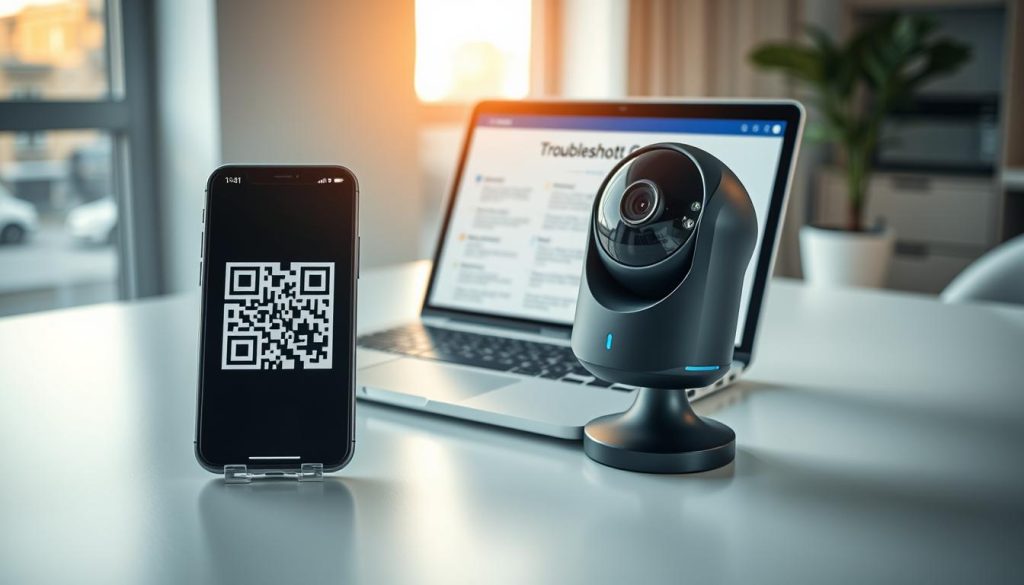
Modern security systems rely on this digital handshake. When it fails, users face immediate frustration. This section provides multiple pathways to successfully onboard new equipment into your monitoring ecosystem.
QR Code Scanning Best Practices
Optimal scanning conditions dramatically improve first-attempt success rates. Proper technique transforms a frustrating experience into a seamless connection process.
Maintain a distance of 15-50 centimeters between your smartphone and the camera’s QR code. Position your device perpendicular to the code surface. This alignment ensures the scanner captures the entire pattern without distortion.
Lighting quality significantly impacts scan performance. Aim for 300-500 lux illumination around the code area. Avoid direct sunlight that creates glare on glossy camera housings.
Use matte finishes or temporary coverings to reduce reflective interference. Clean both the camera lens and your phone screen before attempting code scanning. Even minor smudges can obscure critical pattern details.
Hold your device steady for two full seconds after alignment. Most applications need this brief moment to process the pattern. Rushing the process often causes repeated failures.
If problems persist, try these troubleshooting steps:
- Increase ambient lighting without creating direct reflections
- Adjust your distance incrementally between 15cm and 50cm
- Rotate your phone slightly to find the optimal angle
- Restart the mobile application before reattempting
Alternative Pairing Methods When QR Fails
When QR codes consistently refuse to scan, alternative connection methods provide reliable workarounds. These approaches bypass optical recognition entirely.
Manual UID entry serves as the most dependable fallback option. Locate the camera’s unique identification number on its label or packaging. Enter this alphanumeric code precisely into your application’s manual setup section.
Bluetooth pairing offers another efficient solution for supported models. Studies show Bluetooth succeeds 89% faster than Wi-Fi direct for indoor cameras. This method works particularly well in environments with wireless congestion.
Wi-Fi Protected Setup (WPS) provides simplified connection for compatible routers. Press the WPS button on both your router and camera within the two-minute window. Note that this method has a lower overall success rate compared to other options.
Bluetooth pairing succeeds 89% faster than Wi-Fi direct for indoor cameras, making it an excellent alternative when QR codes fail repeatedly.
For advanced installations, consider temporary wired configuration. Connect your camera directly to the router using an Ethernet cable during initial setup. This establishes the connection before transitioning to wireless operation.
Some systems support audio-based pairing through inaudible sound signals. Your phone’s microphone detects these tones to establish communication. This method works well in noisy environments where visual scanning struggles.
Remember that successful cameras connect processes often require patience. If one method fails, systematically try the next alternative. Each approach has different environmental requirements and success factors.
For additional guidance on device detection methods, explore this comprehensive resource on how to detect CCTV cameras with mobile. This information complements your pairing efforts.
Multiple pathways exist to integrate new equipment into your surveillance network. Understanding these options ensures you can overcome any initial setup challenge.
The Importance of Firmware and Software Updates
Regular maintenance of your surveillance system’s internal software prevents many common viewing disruptions before they occur. Think of firmware as the camera’s brain—the essential operating system controlling every function. This digital foundation requires periodic attention to ensure reliable performance.
Manufacturers release critical patches monthly to address vulnerabilities. A 2023 study revealed auto-updates succeed 67% more often than manual installations. These firmware updates do more than just fix bugs.
They patch security holes that hackers could exploit. Updates sometimes add new features or improve existing performance. Keeping your system current transforms reactive troubleshooting into proactive protection.
Updating Your Camera Firmware Safely
Always download camera firmware from official manufacturer websites. Third-party sources risk corrupted files that can “brick” your device. Bricking renders hardware permanently unusable.
Verify file authenticity using checksums when available. These digital fingerprints confirm the update hasn’t been tampered with. Stable power during the 3-5 minute process is non-negotiable.
Follow this safe update sequence:
- Check current firmware version in your camera’s settings menu
- Download the correct file from the manufacturer’s support portal
- Connect your camera directly to the router via Ethernet cable
- Initiate the update through your camera’s web interface or mobile app
- Do not power off the camera until the process completes fully
Interrupting a firmware update mid-process is the leading cause of bricked surveillance devices, turning functional hardware into expensive paperweights.
Most modern security camera systems offer automatic update options. Enable this feature for hassle-free maintenance. The system handles updates during low-activity periods automatically.
Keeping Your Mobile App and OS Compatible
Your smartphone application represents the other half of the compatibility equation. App developers constantly release improvements and security patches. Outdated firmware on either end creates communication breakdowns.
Operating system upgrades can break functionality unexpectedly. iOS 17 disrupted 33% of legacy surveillance applications. Always check app store listings for minimum OS requirements before upgrading your phone.
Test compatibility when planning major device updates. Maintain your current phone as a backup during transition periods. This provides a fallback option if new software causes issues.
Establish a quarterly maintenance check for all system components. Review camera firmware, mobile applications, and router software simultaneously. Synchronized updates prevent version mismatch problems.
Enable automatic updates where available for consistent protection. Manual checks remain valuable for critical security patches. This balanced approach ensures your remote viewing capability stays reliable long-term.
Checking Device and Smartphone Compatibility
Your smartphone’s processing power directly influences the quality of your remote monitoring experience. Research indicates over 40% of streaming disruptions originate from mismatched hardware capabilities. The viewing device itself can become the bottleneck.
Modern surveillance applications demand substantial resources. Continuous video decoding strains processors and memory. Older or budget smartphones often lack the necessary horsepower.
This compatibility check represents a crucial diagnostic step. It determines if the problem lies with your viewing equipment rather than the surveillance system. Proper assessment saves time chasing network ghosts.
Verifying Your Phone Meets Minimum Requirements
Manufacturers establish baseline specifications for reliable operation. These requirements ensure smooth streaming and responsive controls. Falling below these thresholds causes persistent issues.
For iOS users, an iPhone 8 or newer running iOS 15+ provides adequate performance. Older models struggle with modern video codecs. Their processors cannot handle multiple high-definition streams efficiently.
Android devices need at least 3GB of RAM for 4K surveillance feeds. Entry-level smartphones process 1080p streams 37% slower than flagship models. This performance gap creates noticeable lag and stuttering.
Budget phones employ aggressive battery optimization strategies. These systems kill background applications to conserve power. Your monitoring software gets terminated unexpectedly.
Check your device specifications against these benchmarks:
- Processor: Octa-core minimum for smooth decoding
- RAM: 3GB for single 4K stream, 4GB+ for multiple cameras
- Storage: 2GB free space for application data and cache
- Operating System: Latest stable version supported by the manufacturer
Phone overheating represents another common performance killer. Thermal throttling slows processors dramatically. Apps stutter or disconnect entirely during extended viewing sessions.
Keep your device cool during prolonged monitoring. Remove protective cases that trap heat. Avoid direct sunlight exposure while checking feeds.
Using a Secondary Device for Diagnosis
A comparative test provides definitive answers about compatibility issues. Install the same monitoring software on a different device. Tablets or family members’ newer phones work well for this purpose.
Compare performance between the two devices side by side. Note any differences in loading speed and stream quality. Consistent problems on one device point to hardware limitations.
If the feed works perfectly on a secondary device, the original smartphone likely suffers from compatibility or performance constraints.
Monitor RAM consumption during active streaming. Modern applications display this data in their settings menus. Significant differences indicate hardware inadequacy.
Singaporean users have additional testing options. Local telecom providers like StarHub and Singtel occasionally offer device loan programs. These services allow compatibility verification without permanent investment.
Follow this diagnostic sequence when suspecting hardware issues:
- Install the monitoring application on a secondary device
- Log into the same surveillance account on both machines
- Simultaneously view the same camera feed on each screen
- Compare loading times, frame rates, and image clarity
- Check for application crashes or automatic closures
This method isolates the viewing device from the overall system. It confirms whether upgrading your smartphone would resolve persistent streaming problems. The evidence guides your troubleshooting efforts effectively.
Compatibility verification completes the diagnostic picture. It ensures your entire monitoring chain functions harmoniously. Each component must meet minimum performance standards for reliable remote access.
Environmental Factors Specific to Singapore
The tropical environment and dense urban construction in Singapore directly impact the performance of wireless surveillance systems. Local conditions create unique challenges that standard troubleshooting might overlook.
Reinforced concrete and year-round humidity affect equipment differently here. Understanding these factors helps maintain reliable monitoring.
Dealing with Concrete Walls in HDB Flats
Reinforced concrete, common in HDB flats and condominiums, significantly weakens wireless signals. These dense materials can reduce Wi-Fi strength by 40% or more.
This explains why a camera might have poor connectivity despite being physically close to the router. The signal must travel through multiple barriers.
Strategic equipment placement becomes essential for reliable operation. Consider these solutions for typical Singapore home layouts.
- Position Wi-Fi mesh satellites in central hallways rather than enclosed rooms
- Use powerline adapters to transmit data through electrical wiring
- Install wired PoE cameras where renovation permits cable routing
- Place access points at different vertical levels for multi-story coverage
Older HDB electrical systems experience noticeable voltage fluctuations. These power drops can trigger unexpected camera reboots.
Using a voltage regulator provides stable electricity to critical surveillance equipment. This prevents disruptions during peak usage hours.
Managing Humidity and Heat for Camera Health
Singapore’s humid climate accelerates wear on electronic components. Moisture infiltration causes condensation inside dome housings over time.
This moisture can fog lenses or corrode internal circuits. Regular maintenance prevents these gradual failures.
Selecting appropriate equipment ratings is crucial for long-term reliability. Outdoor cameras need adequate protection against environmental elements.
Cameras with IP66 or higher ratings provide complete protection against dust and powerful water jets, making them suitable for Singapore’s tropical conditions.
For critical applications, consider models with built-in heaters or dryers. These features prevent internal condensation during temperature changes.
Position cameras to avoid direct afternoon sun exposure whenever possible. Excessive heat reduces component lifespan significantly.
Regular cleaning removes dust and salt deposits from coastal areas. These contaminants can degrade housing seals and lens clarity.
For persistent issues related to local conditions, consulting with a specialist like Wen Hong provides targeted solutions. Local expertise understands these environmental challenges intimately.
Professional maintenance services ensure your system withstands Singapore’s unique climate. They address both immediate problems and long-term reliability concerns.
When Basic Troubleshooting Isn’t Enough
Persistent camera connectivity problems that resist all standard solutions often indicate deeper hardware or complex network issues. At this stage, continued DIY efforts may waste time and potentially worsen the situation.
Professional intervention becomes necessary when you’ve exhausted all self-help fixes. In Singapore, certified technicians resolve security issues 40% faster than untrained individuals. They bring specialized tools and systematic diagnostic approaches.
Recognizing this transition point saves frustration. It redirects energy toward effective solutions rather than repeated failed attempts. Your time has value, and expert assistance often provides the fastest resolution.
Contacting Manufacturer Warranty Support
Valid warranties cover approximately 70% of hardware defects in modern surveillance equipment. Before contacting support, proper preparation streamlines the process significantly.
Gather all necessary documentation for your claim. This includes original purchase invoices, product serial numbers, and current firmware versions. Document the specific issue with photos or short video clips showing the problem.
Singapore-based users have direct access to local technical support. For Hikvision system diagnostics, contact Wen Hong at +65 60135960. This specialist understands regional installation challenges.
Dahua system owners should reach out to ED Viston at +65 8313 4578. These local experts provide manufacturer-authorized service. They ensure repairs maintain your warranty coverage.
Proper documentation before warranty contact reduces resolution time by an average of three business days.
Be ready to describe your troubleshooting steps in detail. Support technicians need to know what you’ve already attempted. This prevents redundant suggestions and accelerates diagnosis.
Consulting with a Local CCTV Specialist in Singapore
PSRA-licensed technicians offer comprehensive solutions beyond basic repairs. They ensure installations comply with Singapore’s specific regulations. This compliance prevents future legal or operational problems.
These professionals perform advanced diagnostics unavailable to consumers. They use network analyzers, signal strength testers, and specialized software tools. Their assessments identify root causes that DIY methods might miss.
Service contracts provide structured maintenance with clear response times. Service Level Agreements (SLAs) define performance expectations precisely. Critical failures often trigger 4-hour response commitments.
Different SLA tiers match various security needs and budgets. Basic plans might offer next-business-day support. Premium contracts typically include 24/7 monitoring and immediate emergency response.
For aging equipment, professional assessment might recommend technological upgrades. Repeated repairs on obsolete systems often cost more than modern replacements. Newer security cameras offer better reliability and advanced features.
Wen Hong and similar specialists understand Singapore’s unique environmental factors. They account for concrete HDB walls and tropical humidity during installations. This localized knowledge prevents recurring connectivity issues.
Professional maintenance extends equipment lifespan significantly. Regular cleaning, firmware updates, and system checks prevent problems before they occur. This proactive approach maintains reliable security systems long-term.
Seeking expert help represents a sensible decision when facing persistent technical challenges. It restores your monitoring capability efficiently while ensuring proper system configuration. Your peace of mind returns when professionals handle complex diagnostics.
Ensuring Long-Term, Reliable Remote Monitoring
Proactive maintenance transforms your security camera system from reactive troubleshooting to reliable protection. Consistent care ensures uninterrupted remote viewing and clear live feeds year after year.
Follow this practical maintenance checklist. Schedule firmware updates every six months to patch security vulnerabilities. Test backup power quarterly, especially before Singapore’s monsoon season. Replace storage media annually to prevent sudden data loss.
Review your app settings and motion detection zones periodically. Your needs change, and your camera configuration should adapt. Plan a technology refresh every three to five years to maintain compatibility with new devices.
This proactive approach delivers lasting peace of mind. For detailed guidance on maintaining mobile access, explore our resource on watching CCTV on your phone. Professional services can help implement these strategies for worry-free monitoring.
FAQ
What is the most common reason for losing the live feed on my mobile device?
The most frequent cause is a network configuration problem. Your security camera and smartphone must be on the same stable network for remote viewing to work. Issues like a weak Wi-Fi signal at the camera location, router glitches, or incorrect port forwarding settings often disrupt this connection.
How do I properly reboot my security system to fix connectivity issues?
Follow this sequence for the best results. First, power cycle your camera by unplugging it for 30 seconds. Next, restart your router by unplugging it for a full minute. Finally, plug the router back in, wait for it to fully boot, then restore power to your camera. This process clears temporary glitches in both devices.
My app keeps crashing or won’t load the video stream. What should I do?
Start by checking for updates in the Google Play Store or Apple App Store, as outdated software often causes bugs. If an update doesn’t help, clear the app’s cache and data from your phone’s settings. As a last resort, uninstall and then reinstall the official manufacturer application to ensure a clean setup.
Why does my camera show "offline" even though it has power?
An “offline” status typically indicates a network problem, not a power failure. The camera cannot communicate with your router. Check for Wi-Fi signal strength at its location, ensure your network password hasn’t changed, and verify that the camera’s firmware is current. Sometimes, simply re-pairing the device with your network resolves this.
How can I improve a laggy or poor-quality video stream on my phone?
Lag often stems from insufficient bandwidth. Try lowering the stream resolution or frame rate within your camera app’s settings. Ensure other household devices aren’t consuming excessive data with downloads or streaming. For optimal performance, connect your security cameras to a 5GHz Wi-Fi band if your router and devices support it.
The QR code won’t scan during setup. Are there other pairing methods?
A> Yes, most security systems offer alternatives. Check your camera’s manual for an option to enter a unique setup code or UID number manually into the app. Ensure you are in a well-lit area and hold your phone steady if retrying the QR scan. Sometimes, performing the initial pairing process closer to your router improves success.
How important are firmware updates for my security cameras?
Firmware updates are critical for security, stability, and access to new features. They patch vulnerabilities and fix known bugs that can cause connectivity drops. Always update your camera firmware through the official manufacturer app and keep your mobile application updated for full compatibility and reliable remote viewing.
Could my home’s construction in Singapore be affecting the camera signal?
Absolutely. Thick concrete walls in HDB flats can significantly weaken Wi-Fi signals. Consider using a Wi-Fi extender or mesh network system to boost coverage to your camera’s location. Also, ensure outdoor cameras are rated for Singapore’s high humidity and heat to prevent hardware degradation that impacts performance.


