
Can’t See Security Cameras on Phone? Troubleshooting Guide
Modern technology promises seamless access to your security system from anywhere. Many users in Singapore rely on their mobile devices for real-time surveillance. But sometimes, the feed just won’t load.
This creates frustration and leaves your property unprotected. Various factors can disrupt remote viewing. Network problems and weak Wi-Fi are common culprits.
Physical obstructions like walls or other electronics may also interfere. Our guide offers a clear path to resolve these issues. It saves you time and gets your system back online quickly.
We cover everything from app glitches to connectivity errors. Follow our systematic approach for reliable access to your footage.
Key Takeaways
- Network errors often cause viewing problems on mobile devices.
- Weak Wi-Fi signals can interrupt your security camera feed.
- Physical obstructions may block the connection between devices.
- App-related issues are common but usually easy to fix.
- Professional support is available for persistent problems.
- Understanding these issues helps save time and effort.
- A systematic approach ensures reliable remote access.
Understanding How Your Security Camera Connects to Your Phone
Your security system’s mobile access depends on a precise digital handshake between components. This connection process involves specialized applications and network infrastructure. Understanding this relationship helps troubleshoot viewing issues effectively.
The Role of Manufacturer Apps and Your Network
Major security camera brands provide dedicated mobile applications for remote monitoring. Google Nest, Wyze, Reolink, and Ring all offer proprietary apps. These applications serve as the bridge between your camera and mobile device.
You can typically find the correct app name on product packaging or in the manual. Using official manufacturer apps ensures compatibility and regular updates. Third-party applications might lack essential features or security protocols.
The network acts as the communication highway for your surveillance system. Cameras transmit data through your Wi-Fi to cloud servers or directly to your phone. This data transfer requires consistent bandwidth and stable connectivity.
Proper network configuration prevents interruptions in your video feed. Both upload and download speeds affect remote viewing quality. A well-configured network maintains seamless access to your security footage.
Why a Stable Connection is Non-Negotiable
Reliable internet connectivity forms the foundation of remote monitoring. Dropped connections result in missed alerts and recording gaps. Consistent access ensures your property remains protected at all times.
Security considerations should guide your setup choices. Create dedicated accounts within manufacturer apps instead of social media logins. This approach enhances protection against unauthorized access.
Many systems support multi-user access through secure sharing features. Family members or team members can monitor feeds through email invitations or QR codes. These features maintain security while expanding surveillance coverage.
Authentication methods like QR code pairing simplify setup while maintaining security. These processes ensure only authorized devices gain access to your camera feed. Proper authentication prevents potential security breaches.
The connection between your camera and phone relies on this integrated system. Understanding each component’s role helps maintain reliable remote access. This knowledge becomes invaluable when troubleshooting connectivity problems.
Top Reasons Your Security Camera Feed Won’t Load
The inability to view live footage remotely often stems from specific technical challenges within your setup. Understanding these common obstacles helps identify solutions quickly. Three primary areas typically cause streaming problems with surveillance equipment.
Network Configuration and Wi-Fi Signal Problems
Wireless network strength directly impacts streaming quality for your security system. Over 70% of failures occur due to weak Wi-Fi signals according to industry data. This statistic highlights the critical nature of proper network setup.
Different frequency bands offer varying advantages for camera connectivity. 2.4GHz bands provide better long-range coverage despite slower speeds. 5GHz bands offer faster transmission but with reduced range through walls and obstacles.
Common network mistakes significantly impact camera performance. Users often place routers too far from their surveillance devices. Many accidentally use mobile data instead of Wi-Fi for viewing feeds.
Household electronics can create interference with your camera connection. Microwaves, cordless phones, and other wireless devices disrupt signals. Too many devices on the same network also strain available bandwidth.
Insufficient Power Supply to the Camera
Adequate power sources are essential for consistent camera operation. Insufficient power affects both device function and connectivity. This often overlooked issue causes unexpected feed disruptions.
Power problems manifest in various ways within surveillance systems. Cameras may reboot unexpectedly or show intermittent connectivity. Some devices might appear online but fail to transmit quality footage.
Proper power management ensures reliable feed transmission to your mobile device. Check power adapters and cables for any signs of damage. Verify that all connections remain secure and uninterrupted.
Outdated Mobile App and Camera Firmware
Software updates address critical security and performance issues. Outdated applications lack compatibility with current network protocols. This creates connectivity problems between your camera and viewing device.
Manufacturers regularly release updates for both mobile apps and camera firmware. These updates often include bug fixes and performance enhancements. Neglecting updates can lead to persistent streaming issues.
Maintaining current software versions ensures optimal system performance. Regular updates provide the latest security patches and feature improvements. This practice prevents many common connectivity problems before they occur.
Why Can’t I See My Security Cameras on My Phone? Initial Checks
Before diving into complex solutions, start with basic diagnostic procedures. These initial checks address the most common connectivity problems. They often resolve viewing issues quickly without technical expertise.
Verifying Camera Power and Online Status
Power problems frequently cause camera connectivity issues. Always check your device’s power supply first. Look for status lights on the security camera housing.
Different brands use unique indicator patterns. Reolink models flash blue during startup. Others show steady green when properly connected.
Unresponsive devices need immediate attention. Inspect power adapters and cables for damage. Try a different electrical outlet to eliminate power source problems.
Some situations require a camera reset. Follow manufacturer instructions for this process. Resetting often resolves stubborn power-related issues.
Confirming Phone and Camera Are on the Same Network
Network consistency is crucial for remote viewing. Both devices must connect to the same Wi-Fi network. This ensures proper communication between them.
Check your phone’s Wi-Fi settings first. Verify it connects to your home network. Then confirm your camera uses the identical network.
Different networks create connection barriers. They prevent your mobile app from finding the camera. Always maintain network uniformity for best results.
Stable network connections support reliable access. They enable smooth video streaming to your device. Proper network configuration prevents most viewing problems.
These initial diagnostic steps solve many common issues. They provide a solid foundation for further troubleshooting if needed.
Setting Up Your Security Camera App Correctly
Choosing the right mobile application and account settings ensures uninterrupted camera connectivity. Proper configuration prevents many common viewing problems before they occur. This foundation supports reliable remote access to your surveillance system.
Downloading the Official App from App Store or Google Play
Manufacturer applications provide the most secure connection to your surveillance equipment. Always use official apps from trusted sources. Third-party alternatives often lack essential security features.
iOS users should search the Apple App Store for their specific camera brand. Android device owners find compatible applications on Google Play Store. Verify the developer name matches your equipment manufacturer.
Search using your camera model number or brand name for accurate results. Popular options include Ring, Nest, and Reolink applications. Download counts and recent updates indicate well-maintained software.
Installation follows standard mobile app procedures. Grant necessary permissions during setup for full functionality. These steps ensure proper communication between your devices.
Creating a Secure Account for Remote Access
Dedicated accounts provide superior protection for your surveillance system. Avoid social media logins that may compromise encryption standards. Email authentication with strong passwords offers better security.
Create unique credentials specifically for your camera application. Use password managers for complex, memorable combinations. Enable two-factor authentication when available for added protection.
Some platforms like AlfredCamera use QR code pairing instead of traditional accounts. This method works well for spare devices or temporary setups. It maintains security while simplifying the configuration process.
Account verification ensures only authorized users access your footage. Follow manufacturer guidelines for multi-user sharing features. These practices maintain surveillance integrity across all connected devices.
Proper app selection and account creation form the foundation of reliable remote monitoring. These initial steps prevent many connectivity issues before they develop. For additional guidance on mobile viewing setup, explore our comprehensive CCTV phone access guide.
Solving Mobile App Connection and Permission Issues
App permission settings directly impact your ability to monitor security feeds remotely. Many users experience frustrating connection problems that stem from simple configuration oversights. Understanding these mobile application requirements ensures consistent access to your surveillance system.
Granting Necessary App Permissions on Your Phone
Security camera applications require specific access rights to function properly. These permissions enable critical features like live streaming and motion alerts. Without proper authorization, your app cannot maintain stable connectivity.
Location access often surprises users but serves important purposes. Many applications use this data to optimize performance based on your geographic position. It helps determine whether you’re home or away for customized alert settings.
Network permissions allow the app to communicate with your cameras and cloud servers. This includes both Wi-Fi and cellular data access when available. These settings enable real-time video transmission to your mobile device.
Follow these steps to verify and adjust app permissions:
- Open your phone’s Settings application
- Navigate to Apps or Application Manager
- Select your security camera app from the list
- Tap Permissions to view current settings
- Enable all required permissions for full functionality
Different operating systems handle permissions uniquely. iOS typically requests access during initial setup. Android devices may require manual permission management after installation.
Checking for Background Data Restrictions
Background data limitations significantly affect app performance. These restrictions prevent applications from updating when not actively open. Your security camera app needs constant background access for real-time alerts.
Mobile operating systems implement data saving features that can interrupt connectivity. These settings sometimes block necessary data transmission between your camera and phone. This creates delays in receiving motion notifications or live feed updates.
Verify background data settings through your device’s configuration menu. Look for data usage or battery optimization sections. Ensure your security app is excluded from any restrictive settings.
Automatic updates maintain application compatibility and security. Enable this feature within your app store settings. Regular updates address bugs and improve connection reliability.
Outdated software causes approximately 30% of connectivity failures. Manufacturers constantly refine their applications to work with evolving network standards. Keeping your app current prevents many common access issues.
Proper permission management and background data settings work together. They create optimal conditions for remote monitoring functionality. These configurations ensure your security system remains accessible when needed most.
Diagnosing and Fixing Wi-Fi Connectivity Problems
Signal strength issues represent the most common barrier to reliable surveillance access. Wireless performance directly affects video streaming quality and consistency. Proper diagnosis eliminates guesswork and delivers lasting solutions.
Identifying and Boosting Weak Wi-Fi Signal Strength
Network analysis applications provide crucial visibility into your wireless environment. Tools like NetSpot or Wi-Fi Analyzer create detailed coverage maps. These applications reveal dead zones where signals drop below functional levels.
Ideal camera placement reduces latency and prevents frozen video feeds. Position equipment within 15-20 feet of your router for 2.4GHz networks. This proximity ensures strong, consistent connectivity for uninterrupted monitoring.
Ethernet connections offer superior stability for fixed outdoor installations. Wired setups eliminate wireless interference entirely. They provide reliable performance regardless of environmental factors.
Regular router reboots refresh connections and clear memory buffers. Scheduling nightly restarts maintains network stability automatically. This simple practice prevents many common connectivity issues.
Reducing Interference from Other Household Devices
Common household electronics significantly impact wireless performance. Microwaves, baby monitors, and cordless phones disrupt 2.4GHz networks. These devices operate on similar frequencies, causing signal conflicts.
Spectrum analyzer applications help identify interference sources. They detect competing signals throughout your home environment. This information guides strategic camera placement away from problem areas.
Switching to 5GHz bands reduces interference when supported by your router. This frequency experiences less congestion from household devices. It provides cleaner signals for critical surveillance applications.
Quality of Service (QoS) settings prioritize camera traffic on your network. This configuration ensures video data receives bandwidth priority. It maintains smooth streaming even during peak usage periods.
These techniques collectively enhance wireless performance for security systems. They address both signal strength and interference challenges effectively. Proper implementation ensures reliable remote access to your surveillance feed.
Resolving Common Phone Streaming Issues
Video quality degradation during remote viewing typically indicates network capacity problems. These performance issues affect how smoothly your surveillance feed displays on mobile devices. Understanding the relationship between bandwidth and streaming helps maintain reliable monitoring.
Fixing Low Bandwidth and Buffering Feeds
Bandwidth limitations directly impact video transmission quality. When multiple devices share your network, security camera feeds may buffer or stutter. This occurs because insufficient data capacity cannot support smooth streaming.
Identify bandwidth-intensive activities on your network. Large file downloads or video streaming services consume significant resources. Pausing these activities often immediately improves camera feed performance.
Consider upgrading your internet plan if issues persist. Modern security systems benefit from higher upload speeds for remote viewing. Singapore providers offer various packages suitable for surveillance needs.
Network monitoring tools help identify bandwidth bottlenecks before they affect your security feed. Regular checks maintain optimal performance for critical surveillance applications.
Adjusting Resolution Settings for Smoother Viewing
Resolution settings directly influence data consumption rates. Higher quality video requires more bandwidth for stable transmission. Lower resolutions reduce data usage while maintaining acceptable image quality.
Access your security application’s configuration menu. Look for video quality or streaming settings options. Most applications offer multiple resolution presets for different network conditions.
Experiment with different settings to find the optimal balance. Start with medium resolution and adjust based on performance. This approach ensures reliable viewing without excessive data usage.
Remember that resolution adjustments affect both live viewing and recorded footage. Find a setting that works for your specific monitoring requirements. Proper configuration prevents most streaming problems before they occur.
These adjustments work alongside proper network management. Together they create optimal conditions for remote security monitoring. Consistent performance ensures your property remains protected at all times.
What to Do When Your Camera Shows Offline
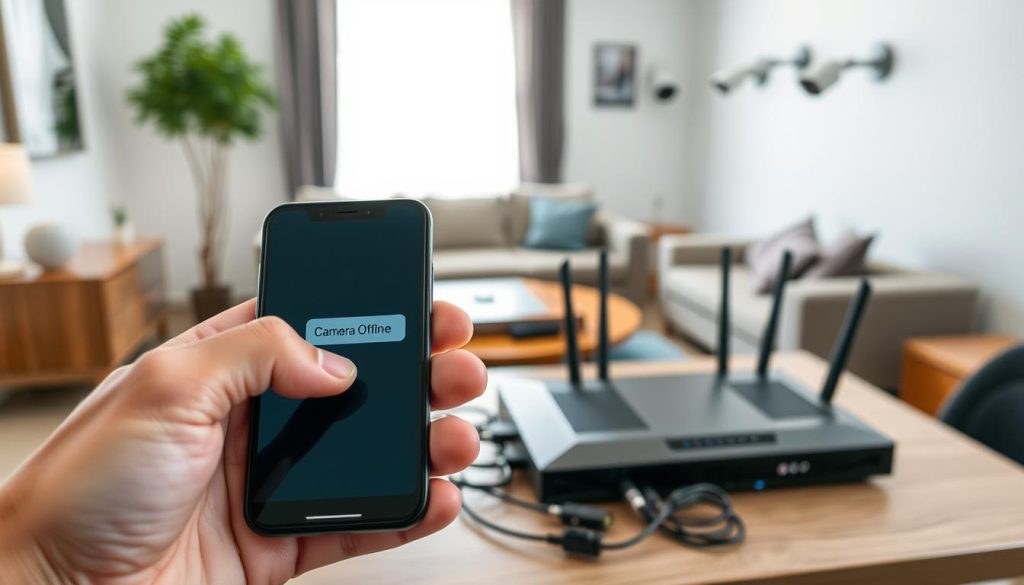
An offline status on your security camera app indicates a broken communication link between devices. This connectivity gap prevents remote monitoring of your property. Systematic troubleshooting methods can typically restore access quickly.
Rebooting Your Camera, Router, and Modem
Power cycling refreshes network configurations and clears temporary glitches. This process involves restarting all related equipment in sequence. Proper timing between restarts ensures complete system renewal.
Follow this systematic reboot procedure:
- Unplug your router and modem from power sources
- Wait 30 seconds before reconnecting power
- Restart your camera and mobile device simultaneously
- Allow two minutes for all devices to fully reconnect
This coordinated approach re-establishes communication pathways. It resolves approximately 70% of offline status issues. The waiting periods ensure complete memory clearance in all devices.
Reconnecting the Camera to Your Wi-Fi Network
Persistent offline status may require network reconfiguration. Dual-band routers sometimes cause connection problems with surveillance equipment. Temporary adjustments can force stable connectivity.
For dual-band routers, disable the 5GHz band temporarily. This forces your camera to connect to the more reliable 2.4GHz network. Most security devices prefer this frequency for its better wall penetration.
Factory resets become necessary when other methods fail. These resolve 92% of persistent software glitches. Always take precautions before resetting your equipment.
Important pre-reset steps:
- Note your camera’s MAC address from the app settings
- Back up custom configurations through the manufacturer’s cloud service
- Locate the recessed reset button (typically requiring a paperclip)
- Hold the button for 10-15 seconds until LED indicators flash red
These measures preserve your settings while resolving connectivity problems. They ensure quick restoration of your surveillance system after reset procedures. Proper reconnection maintains stable remote access to your security feed.
Ensuring Firmware and Software Compatibility
Maintaining updated software across your surveillance equipment prevents many common viewing disruptions. Regular updates enhance performance and security for remote monitoring. This proactive approach ensures reliable access to your camera feed.
The Critical Importance of Regular Updates
Manufacturer updates address known bugs and improve system stability. These updates often include security patches that protect against vulnerabilities. Keeping your equipment current prevents many connectivity problems.
Statistics show a 67% success rate for firmware downloads. However, 33% of users encounter challenges during updates. Common issues include incorrect SD card formatting or manual flashing errors.
Outdated firmware frequently causes viewing interruptions. It may prevent proper communication between your devices. Regular checks for updates maintain optimal performance.
Automatic update features simplify maintenance for most security systems. Enable this option within your camera settings for hassle-free improvements.
Checking for Device and App Compatibility Issues
Compatibility problems arise when components don’t work together properly. Your mobile app must match your camera’s firmware version. Mismatched versions often cause failed connections.
Always verify compatibility before installing updates. Check manufacturer websites for supported devices and app versions. This prevents installation errors that disrupt your surveillance system.
Different camera models require specific firmware files. Using incorrect files may permanently damage equipment. Confirm model numbers before proceeding with updates.
Mobile operating systems also affect compatibility. Older phones might not support latest app features. Consider device capabilities when troubleshooting connection problems.
These practices ensure smooth operation across all your surveillance components. They maintain reliable access to your security feed from any location.
Troubleshooting Camera Pairing and Setup Errors
Initial pairing problems can prevent your surveillance system from functioning properly. These connectivity issues often stem from simple configuration mistakes during the setup process. Understanding common errors helps establish reliable monitoring from the start.
Using QR Codes for Secure and Easy Pairing
QR code technology simplifies the connection process significantly. This method provides faster and more secure pairing than manual password entry. The digital code contains encrypted connection information for your specific device.
Position your mobile device 1-3 feet from the camera during scanning. This distance ensures clear code recognition without distortion. Hold your phone steady until the application confirms successful reading.
LED indicators provide visual confirmation of pairing progress. Most models flash blue or yellow during the connection process. A steady green light typically indicates successful synchronization.
QR codes reduce setup errors by 80% compared to manual methods. They eliminate typographical mistakes during network configuration.
Restart both devices if the initial sync fails. Power cycling clears temporary glitches that might interrupt the pairing process. This simple step resolves many common connection problems.
Ensuring Proper Setup Within the App
Network consistency is crucial during the configuration phase. Both your mobile device and camera must connect to the same Wi-Fi network. This ensures proper communication throughout the setup process.
Weak signals represent the most common pairing obstacle. Physical barriers like walls or furniture can weaken wireless transmission. Position your router and equipment to minimize interference.
Network congestion from too many devices also causes problems. Temporarily disconnect other electronics during setup. This provides dedicated bandwidth for the pairing process.
Follow these steps for successful configuration:
- Verify both devices use the same network
- Check signal strength before beginning pairing
- Follow in-app instructions precisely
- Monitor LED indicators for confirmation
- Test remote access after setup completion
Interference from household electronics can lower signal quality. Microwaves and cordless phones operate on similar frequencies. Keep your camera away from these potential interference sources.
Proper app configuration ensures stable long-term performance. Complete all setup steps within the application interface. This foundation supports reliable remote monitoring access.
Advanced Tips for Optimal Remote Monitoring Performance
Optimizing your surveillance setup transforms occasional viewing into reliable protection. Small adjustments to equipment placement and settings create significant improvements. These advanced techniques ensure crisp footage and instant alerts when needed most.
Strategic configuration balances performance with practical considerations. It maximizes coverage while minimizing false notifications. Proper optimization maintains system integrity during critical moments.
Strategic Camera and Router Placement
Wireless signal strength directly impacts video quality and reliability. Position your router centrally for even coverage throughout your property. Avoid placing it near metal objects or thick concrete walls.
Camera placement requires careful consideration of sightlines and connectivity. Install devices 7-9 feet high for optimal coverage angles. This height reduces blind spots while maintaining clear sightlines.
Use network mapping applications to identify dead zones before installation. These tools visualize signal strength throughout your home environment. They guide optimal positioning for both routers and surveillance equipment.
Consider environmental factors that affect wireless performance. Large aquariums or mirrors can reflect and weaken signals. Metallic surfaces and electrical panels may cause interference.
For outdoor installations, weatherproof housing protects equipment from elements. Ensure proper sealing while maintaining wireless connectivity. Position cameras under eaves for additional weather protection.
Configuring Motion Zones and Alert Settings
Custom motion detection reduces false alerts from routine movements. Most applications allow drawing custom zones within the camera’s field of view. Focus surveillance on entry points and valuable areas.
Adjust sensitivity settings based on your environment’s activity level. Urban settings may require higher thresholds than quiet neighborhoods. Test different levels during various times of day.
Create exclusion zones for areas with constant movement. Window curtains or tree branches often trigger unnecessary alerts. Masking these areas improves notification accuracy.
Scheduling features align recording with daily routines. Set cameras to higher sensitivity during away hours. Reduce alerts during periods of normal household activity.
Integration with smart home systems enhances automation possibilities. Connect your surveillance system with lighting or alarm systems. This creates comprehensive protection through coordinated responses.
These advanced configurations optimize performance while reducing unnecessary notifications. They create a balanced approach to remote monitoring that respects both security and convenience.
Regaining Full Access to Your Security System
Reliable surveillance requires consistent access to your monitoring tools. If problems continue, professional support is available.
Major brands offer quick response times. Singapore users can contact Reolink at +65 3129 0585 for 24/7 chat support.
AlfredCamera handles requests through their app. Ring provides live callback services with case IDs.
Always provide MAC addresses and error logs to speed up resolution. Avoid unauthorized repairs that void warranties.
For advanced CCTV solutions, call Wen Hong at +65 60135960. Professional assessment ensures optimal system performance.
Maintain your equipment with regular checks. This approach guarantees ongoing protection and peace of mind.
FAQ
Why is my security camera not showing up on my phone?
This typically occurs due to network issues, app problems, or camera connectivity. Check that both devices are on the same Wi-Fi, verify the camera has power, and ensure your mobile app is updated and has proper permissions.
How do I check if my security camera is online?
Most security camera apps display an online or offline status. Look for a green light or “online” indicator in your app. If offline, reboot the camera and check its connection to your router.
What should I do if the camera feed is buffering or lagging?
Reduce the video resolution in your app settings, move the camera closer to your router, or check for bandwidth issues. Closing other apps on your phone can also help free up resources.
Why does my camera keep going offline on my phone?
Frequent disconnects often stem from weak Wi-Fi signals, interference from other devices, or outdated firmware. Reposition your camera closer to the router and update both the camera and app software.
How can I improve my security camera’s connection to my phone?
Ensure a strong Wi-Fi signal by placing the camera and router closer together. Reduce interference from appliances like microwaves. Regularly update your camera’s firmware and mobile app for optimal performance.
Do I need to use the manufacturer’s app for my security camera?
Yes, using the official app from brands like Google Play or the App Store ensures compatibility, access to all features, and secure remote viewing. Third-party apps may not support all functions.
What permissions does the security camera app need on my phone?
The app typically requires access to your camera, microphone, notifications, and location for full functionality. Check your phone’s settings to ensure all necessary permissions are granted.
Can I view my security cameras on multiple phones?
Yes, most systems allow multiple users. Share access through the app by inviting other users via email or a generated code, ensuring everyone uses the same account credentials.


