
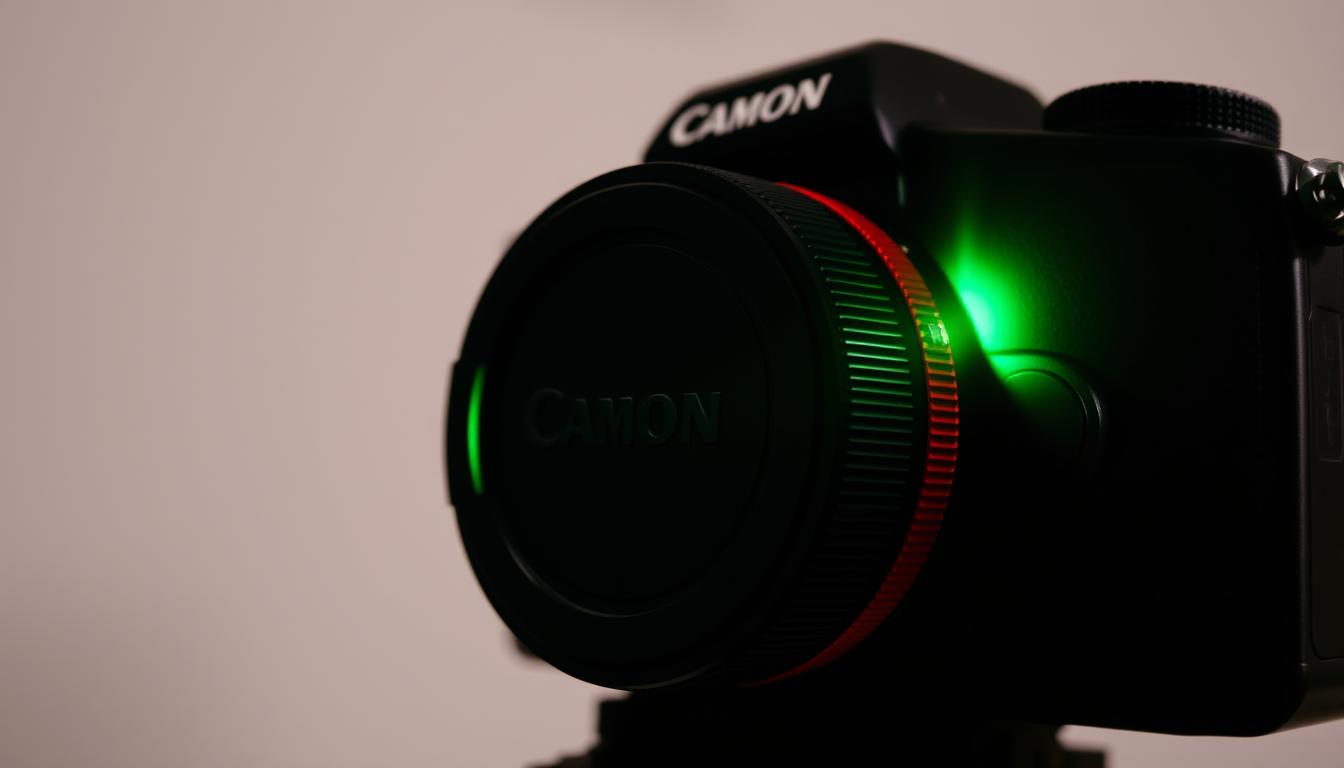
What Does a Green Light on a Camera Mean? Explained
Camera indicators play a crucial role in photography and surveillance. These small yet powerful signals help users understand device status quickly. Among them, a green light is one of the most common visual cues.
Whether it’s a security system or a smartphone, these lights provide instant feedback. A glowing green indicator often confirms active recording or proper functionality. Recognizing these signals boosts confidence in operating devices effectively.
This guide decodes the meaning behind such visual alerts. Real-world examples include security cameras and mobile recording notifications. Understanding these indicators ensures smoother usage and troubleshooting.
Key Takeaways
- Camera lights serve as quick status signals.
- Green indicators often mean active recording or proper function.
- Security systems and smartphones use these visual cues.
- Recognizing lights improves device operation.
- Understanding alerts helps in troubleshooting.
Understanding Camera Light Indicators
LED indicators serve as silent communicators for camera operations. These small but powerful signals relay critical information without sound, ensuring users can quickly assess device status. From security systems to handheld devices, visual cues streamline troubleshooting and operation.
How Visual Signals Enhance Functionality
Cameras use colored lights to denote different states. A steady glow might confirm power, while flashing patterns often indicate data transfer or errors. For example, the DCS-2100 model uses red and green to signal network connectivity—solid red for power-only mode and solid green for an active link.
Decoding Common Light Colors
Manufacturers follow general conventions for indicators, though specifics vary:
- Red: Typically signals standby or power-on mode.
- Green: Confirms operational readiness or live recording.
- Blue/Amber: Often used for pairing modes or low battery alerts.
Mini cameras may use rapid flashes during startup, while security systems employ alternating colors for alarms. Always consult your device manual for exact meanings, as coding systems differ by brand.
What Does a Green Light on a Camera Mean?
A glowing green indicator on your device often signals operational success. Depending on its pattern—steady or flashing—it communicates distinct functions, from stable connections to active data transfers.
Solid Green Light: Power and Connection Status
A steady glow typically means camera readiness. For example, the DCS-2100 security model shows a solid green light when linked to a router or computer, confirming proper configuration.
Mini cameras may use this signal differently. Some brands display it during startup, while others indicate Wi-Fi synchronization. Always check the manual for brand-specific codes.
Flashing Green Light: Data Transmission Indicator
Rapid flashes often denote network activity. In security systems, a flashing green light suggests video uploads or firmware updates. Offline devices might blink intermittently while reconnecting.
Smartphones like Android 12 use a subtle green dot during recording. This privacy feature aligns with the solid green light convention, visually confirming active capture.
Comparing Camera Light Indicators
Different colored lights on cameras serve distinct purposes, helping users quickly assess device status. While green often signals normal operations, red typically warns of issues. Flashing patterns add another layer of detail, indicating actions like data transfers or system reboots.
Red vs. Green: Decoding Priority Signals
Manufacturers follow a color-based priority system for devices. A steady red light often means warnings—like low battery or failed network connections. In contrast, green lights confirm normal function, such as active recording or stable power.
For example, the DCS-2100 camera alternates red and green during reboots. Amber alerts may appear for power interruptions, while blue signals motion detection in mini cameras.
Flashing Patterns: What They Reveal
Rapid or rhythmic flashing lights convey specific actions:
- Red/green alternation: System reset in progress (common in DCS-2100 models).
- Blinking red/blue: Indicates a hard reset or firmware update.
- Steady green with flashes: Confirms live data uploads to cloud storage.
Persistent red lights may require troubleshooting, like checking cables or restarting the device. Always consult your manual for brand-specific codes.
Device-Specific Light Indicators
LED behavior varies across security systems, smartphones, and mini cameras. Manufacturers design these visual cues to align with user needs, from enterprise diagnostics to consumer privacy alerts. Recognizing these patterns ensures accurate device monitoring.
DCS-2100 Camera Diagnostic Sequences
Enterprise-grade devices like the DSC-2100 camera use complex light codes. A solid red light signals network failure, while alternating red-green flashes indicate firmware updates. These sequences help IT teams diagnose issues without accessing logs.
Smartphone Camera Notifications
Modern smartphone cameras prioritize privacy. iOS displays a green dot during recording, while Android 12 adds a persistent icon. Disabling these LEDs often requires app-level permissions, ensuring users retain control.
Mini Camera LED Status Codes
Compact devices like the Mini 2 rely on color-coded mini camera LED alerts. A solid blue light confirms live view mode, whereas blinking blue-green indicates pairing. For troubleshooting, a solid red glow typically points to Wi-Fi disconnection.
Enterprise systems often feature more intricate indicators than consumer models. For example, mini cameras allow LED deactivation via settings, while industrial devices prioritize persistent alerts for security compliance.
Privacy Implications of Camera Lights
Visual indicators on cameras serve as a critical privacy safeguard in today’s connected world. These privacy settings help people know when recording occurs, preventing unauthorized surveillance. Many countries now mandate visible alerts as part of data protection laws.
Protection Through Visible Indicators
Hardware-based lights provide physical proof of camera activity. Unlike software notifications, these devices cannot be disabled without physical tampering. Singapore’s PDPA requires such visible alerts for all public-facing surveillance systems.
Key legal requirements include:
- Continuous illumination during active recording
- Distinct colors for different modes (green=recording, red=standby)
- Minimum brightness levels for visibility
Smartphone Privacy Innovations
Android 12 introduced a green dot system that appears whenever apps access the camera. Samsung expanded this with detailed access logs in support settings. Users can now:
- View which apps recently used the camera
- See duration of access attempts
- Revoke permissions directly from notifications
This transparency helps prevent hidden surveillance through compromised devices. Software indicators complement hardware lights, creating multiple layers of protection.
Troubleshooting Camera Light Issues
Camera status lights occasionally malfunction, requiring systematic troubleshooting. Whether the indicator is absent or behaving erratically, identifying the root cause ensures your device operates correctly. Start with basic checks before diving into advanced diagnostics.

When the Green Light Doesn’t Appear
A missing LED often points to power or network failures. For AC-powered security cameras, use a multimeter to *check voltage* at the adapter. Wireless models may need router reboots or signal strength tests.
If power isn’t the issue, try these steps:
- Inspect cables for frays or loose connections.
- Test alternate outlets or power sources.
- Verify firmware compatibility—outdated versions may disable indicators.
Resolving Flashing Light Problems
Persistent blinking often signals flashing light problems tied to data transfers or errors. For DCS-2100 models, rapid red-green alternation means a factory reset is underway. Mini cameras may blink during Wi-Fi pairing—hold the reset button for 10 seconds to stabilize the signal.
For network-related flickering:
- Reconfigure router settings to prioritize the camera’s bandwidth.
- Update device firmware via the manufacturer’s app.
- Disable VPNs or firewalls temporarily to test connectivity.
“Always consult the manual for brand-specific LED codes—generic fixes may not apply.”
Managing Your Camera’s Visual Indicators
Customizing your device settings enhances functionality while maintaining privacy. Many modern cameras allow LED adjustments, from brightness to scheduled deactivation. This is especially useful in low-light environments where amber or green lights might cause distractions.
Enterprise systems often offer advanced controls. Users can program patterns for alerts or sync indicators with smart home setups. For battery-powered models, disabling non-essential LEDs extends operational life.
Future innovations may replace visual cues with haptic feedback or silent notifications. Until then, mastering your settings ensures your device stays camera ready without compromising efficiency.
FAQ
Why is my camera showing a solid green indicator?
A steady glow typically confirms proper power supply and active network connectivity. This status means the device is operational and ready for use.
What does a blinking green LED signify on security cameras?
Rapid pulses indicate ongoing data transfer, often seen during live streaming or firmware updates. Some models use this pattern for motion detection alerts.
How do red and green indicators differ on surveillance equipment?
Crimson signals usually denote recording activity or errors, while emerald hues represent standby mode or successful connections. Always check your model’s manual for exact interpretations.
Can I disable the visual indicators on my webcam?
Many modern devices allow LED deactivation through settings, though some jurisdictions mandate visible recording notifications for privacy compliance.
Why won’t my DSC-2100’s status light turn green?
This could stem from power issues, failed network handshakes, or firmware glitches. Try rebooting the device and verifying cable connections first.
Do smartphone cameras display similar light patterns?
Mobile devices often use software-based indicators instead of physical LEDs. Look for on-screen icons that mimic traditional hardware signals.
What should I do if my camera’s amber light stays on?
Yellow/orange tones frequently signal initialization or charging states. If persistent, consult troubleshooting guides for potential hardware malfunctions.
How do mini spy cameras conceal their operation lights?
Covert models may lack visible indicators entirely or position them discreetly. Some advanced units feature infrared LEDs invisible to the naked eye.


