
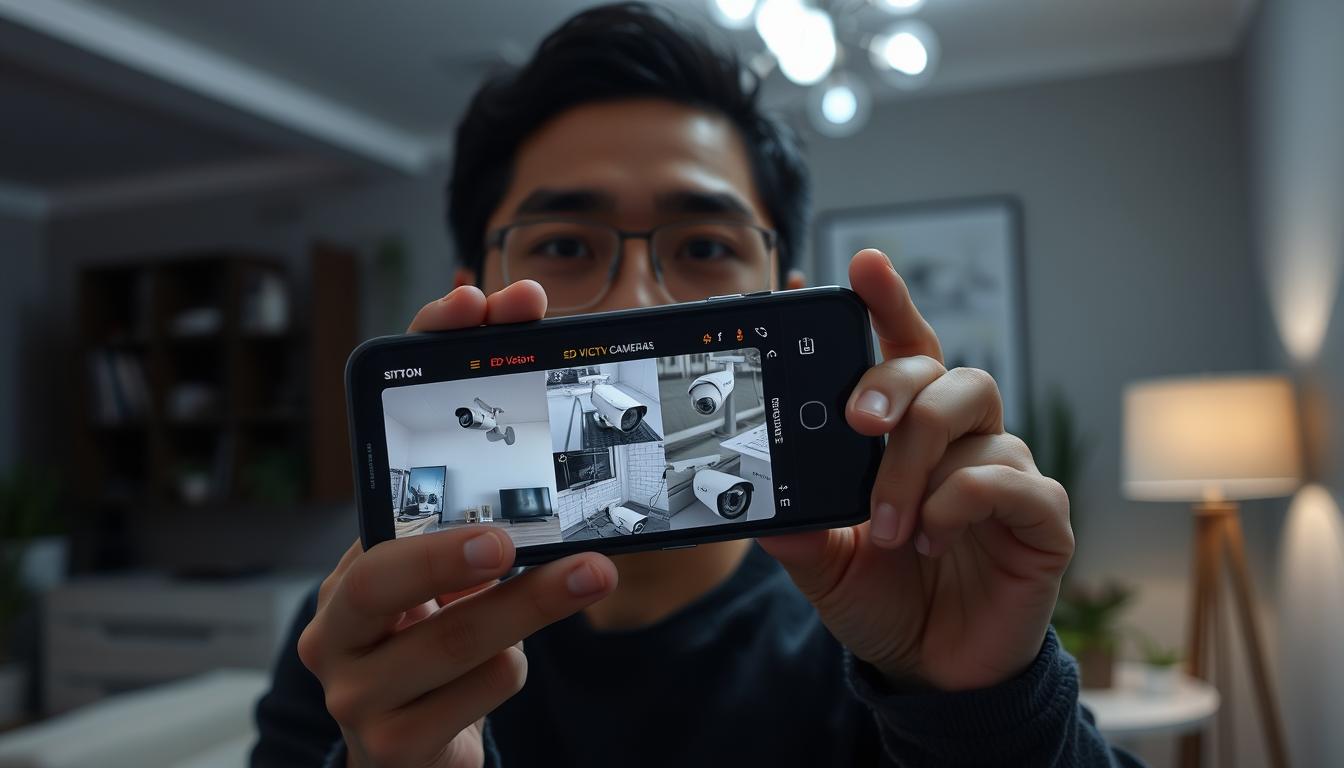
Check CCTV Status on Phone: Quick Verification Guide
Ever thought about how much peace of mind you could get by checking CCTV status on your phone? In today’s fast world, security is key. Being able to check your CCTV system on the go could change how we feel safe. Here’s a simple guide for Singapore residents to check their CCTV on phone easily.
Technology does more than just make things convenient; it helps us keep our surroundings safe. Imagine never having to doubt if your CCTV is working right. CCTV security checks Singapore are now simpler than ever. It’s time to use this modern way to keep ourselves safe.
Want to learn how to easily make sure your surveillance system is working? Keep reading for expert tips!
Key Takeaways
- Being able to watch CCTV from afar makes us safer.
- Connecting to your phone gives you instant updates.
- Most CCTV problems can be fixed with simple checks.
- A strong internet connection is key for remote access.
- For the latest solutions and deals, call CCTV Maintenance at +65 60135960.
Introduction
CCTV is key to keeping homes and businesses safe. As cities like Singapore grow, so does the need for better security. CCTV systems help by watching over places all the time.
Now, you can watch CCTV on your phone thanks to CCTV mobile applications. These apps let you see live footage and get alerts. This makes it easy to stay safe, no matter where you are.
In Singapore, there’s a big push for top-notch security. CCTV cameras now have cool features like night vision and motion detection. You can use apps like Hik-Connect to manage your system easily. This shows how important CCTV is for keeping everyone safe in Singapore.
Technology keeps getting better, and so will security systems. Soon, we’ll see more AI in CCTV. This means better monitoring and more safety for everyone.
If you want to boost your security, contact CCTV Maintenance at +65 60135960. They can tell you about the latest CCTV tech and deals!
Benefits of Connecting CCTV to Your Smartphone
Connecting your CCTV system to your smartphone offers many benefits. It makes security better and is more convenient. You can watch live video feeds anytime, anywhere. This lets you quickly respond to any issues.
Real-Time Monitoring
Real-time CCTV monitoring sends alerts about unusual activities. You can watch live footage from anywhere. This helps you act fast against suspicious behaviors.
Even without cellular service, wireless CCTV cameras can use public Wi-Fi. This makes access easy and reliable.
Remote Accessibility
CCTV remote access lets you check on your property from anywhere. Whether you’re at work or traveling, you can monitor your property easily. This gives you peace of mind with just a glance at your phone.
Apps like Hikvision and Alarm.com make it easy to connect. They send timely notifications. This keeps you informed about your security.
These modern technologies make life easier and safer. For the latest CCTV solutions and offers, contact CCTV Maintenance today at +65 60135960.
Requirements for Successful Setup
Setting up CCTV monitoring on your smartphone needs careful attention. Make sure all parts work well together for the best results. It’s important to choose the right devices and have a strong internet connection.
Compatible Devices
Choosing the right equipment is key for good surveillance. Here are some compatible CCTV devices to think about:
- Modern smartphones (iOS and Android)
- HiLook NVRs (Network Video Recorders)
- HiLook DVRs (Digital Video Recorders)
These devices meet different needs and preferences. Buying from trusted brands ensures they work well with your smartphone.
Stable Internet Connection
A reliable internet connection is essential for CCTV systems. It lets you see live footage, which is important for monitoring. Here are some tips for a strong internet connection:
- Place the camera near the Wi-Fi router
- Keep other devices away from the camera
- Use a wired Ethernet connection if you can
Without a stable internet, you might face problems like disconnections or slow streams. Check your internet speed and connection often to spot any issues.
Need help or want to learn about new CCTV solutions? Contact CCTV Maintenance today at +65 60135960.
How to Install the HiLook App
To start installing the HiLook app, make sure your phone is compatible. You can find it in the Apple App Store and Google Play Store. Here’s how to install HiLook on your smartphone:
- Open the Apple App Store or Google Play Store.
- Type “HiLook Vision” in the search bar.
- Choose the app from the search results (Version 5.0 released October 2020).
- Tap Install and wait for it to download.
- Open the HiLook app after it’s installed.
- Give the app permission to use your camera for scanning.
Once installed, you can add your CCTV devices. Scan a QR code on your NVR menu screen. Point the targeting square at the QR code. The app will recognize it automatically, making it easy.
If you run into problems, like the app not working right, try closing and restarting it. Deleting and reinstalling might fix it too.
Be patient during installation. It might take about five minutes for the connection to go online. Check your modem status and network cable. Rebooting the modem might help if it doesn’t update.
Need help with CCTV solutions or offers? Contact CCTV Maintenance at +65 60135960 for more information.
Registering an Account on the HiLook App
Creating a HiLook account lets you access your security system from anywhere. You can sign up through the HiLook app using an email or phone number. This HiLook account registration is key to linking new DVR or NVR devices to your app. It ensures a smooth setup for remote monitoring and management.
Many new users choose to register their Hik-Connect account via the mobile app. This shows how convenient mobile apps are, even for those always on the move. The HiLook app has seen thousands of downloads from the Apple App Store.
After setting up your HiLook account, you’ll get access to many features. You can add devices through Cloud P2P, Hik-Connect DDNS, or by manually entering the device SN. After registering, you might want to change your default domain name for easier access.
Need help setting up your HiLook account or want to explore advanced options? Contact CCTV Maintenance today at +65 60135960. Learn about the latest CCTV solutions and get exclusive offers.
Configuring NVR for Remote Access
To set up NVR for mobile access, follow a few important steps. First, make sure the NVR is connected to a stable internet. This is key for constant access to your cameras and for getting alerts when something happens.
Then, open the HiLook NVR settings to enable access. Turn on encryption for better security. This step keeps your data safe and stops others from seeing your feeds.
The Hik connect app makes connecting Hikvision devices to phones easy. It lets you watch many cameras at once, get alerts, and play back videos. You can also set up alerts to only come in at certain times.
After setting everything up, check the network settings. Make sure the NVR and your devices can talk to each other. Follow the steps to log in, set up the camera domain, and save your settings.
- Check connectivity and ensure you have a reliable wireless network.
- Open the Hik connect app and log in.
- Enter the NVR details to facilitate the connection.
- Name your cameras for easy identification.
- Start accessing live feeds directly from your mobile device.
Setting up your NVR for remote access makes monitoring easier. For more on CCTV solutions and offers, call CCTV Maintenance at +65 60135960.
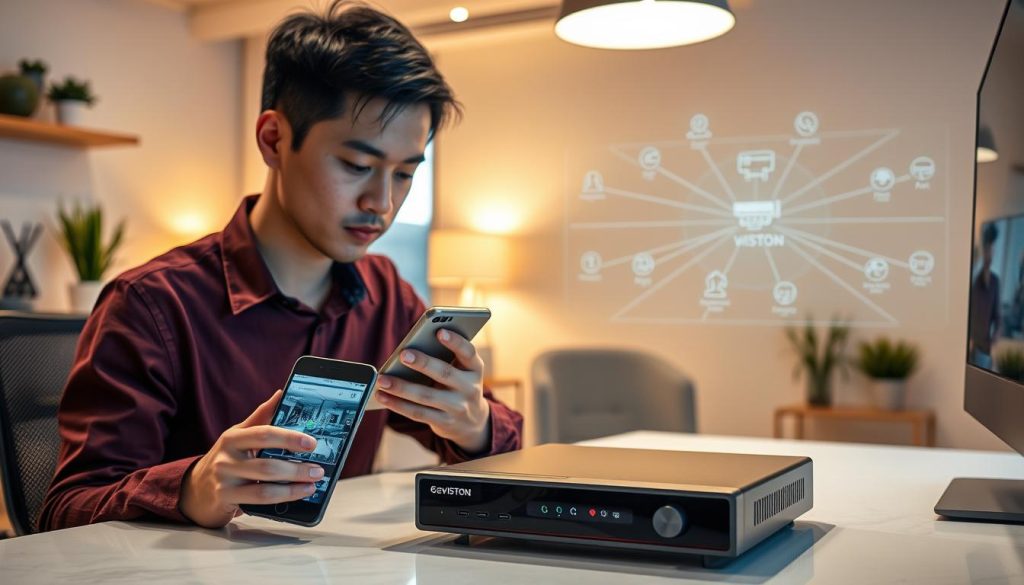
How do I know if my CCTV is working on my phone?
It’s important to make sure your CCTV system works on your phone for good monitoring. You can check if it’s working by looking at the network status and using the live feed feature. This way, you can see if your security cameras are working right.
Checking Network Status
First, check your network connection. A strong WiFi signal is key for smooth monitoring on mobile devices. If your cameras are IP-based, look for three green lights on devices like TP Link Powerline Adapters.
If these lights are not green or are red, you might have network problems. Also, if your IP address changes, you’ll need to update your app settings.
Using the Live Feed Feature
The live feed feature lets you see your camera’s feed in real-time. Open your HiLook app and go to the live feed section. If it’s working, you’ll see the camera feed on your phone.
If you have problems, make sure your app is up to date. Your phone and camera must be compatible for easy monitoring. If you’re having trouble, check your router settings or call CCTV Maintenance for help.
Stay ahead by fixing connectivity issues early. For the latest in CCTV solutions and deals, contact CCTV Maintenance at +65 60135960.
CCTV Phone App Troubleshooting Tips
Using your smartphone to access CCTV feeds can sometimes be tricky. This is often due to connectivity problems and app performance. Knowing common issues can help you fix them. This way, you can enjoy better monitoring and ensure your system works well.
Common Connectivity Issues
Many people face problems when trying to watch CCTV footage on their phones. These issues can be caused by several factors:
- Poor Wi-Fi signal strength due to physical barriers and electronic device interference.
- Too many devices connected to the same wireless network.
- Network congestion making it hard to keep a stable connection.
- Firmware problems or misconfigurations that affect Wi-Fi performance.
To solve these connectivity problems, try these steps:
- Clear the app cache to fix memory issues.
- Update to the latest CCTV app version for bug fixes and new features.
- Test the app on another device to find compatibility issues.
App Updates and Compatibility
It’s important to keep your CCTV app updated for the best performance. Recent CCTV app updates Singapore often bring important improvements. Also, make sure your smartphone and the app work well together. This helps avoid common problems and makes your experience better.
If you need help with connectivity or want to learn about the latest CCTV solutions, call CCTV Maintenance at +65 60135960. Start improving your security setup today!

Remote Viewing Process
In today’s world, it’s common to view CCTV on your phone. Apps make it easy to connect with your surveillance system. The HiLook app is a great example, with features that make it simple to watch CCTV footage on your phone.
First, make sure your camera system works with smartphone apps. Many IP cameras use P2P technology for easy access. You can set up an IP camera for remote viewing in under two minutes. If you have more than one camera, remember each might need a different port number.
Using Dynamic DNS (DDNS) services helps with dynamic IP addresses. This way, you can always find your cameras online, even if your IP changes.
Modern security cameras can use 4G data for access. This means you can watch feeds without needing the internet. Apps like the iDVR-PRO Viewer for iPhone offer live streaming and playback, giving you a full monitoring experience.
Most security cameras work with mobile devices. Scanning a QR code from the NVR can connect your CCTV to your phone. If you’re having trouble, check your internet router first. Good internet is key for remote CCTV access.
Looking for top solutions for remote CCTV viewing? Contact CCTV Maintenance at +65 60135960. Our experts can help tailor support for your security needs.
Conclusion
Monitoring CCTV systems on mobile phones has changed how we keep properties safe. It gives users quick access to live footage and lets them watch over their places from anywhere. This is a big hit with property owners because it makes them feel more secure.
Most DVR makers now have apps for mobile devices. This makes it easier than ever to keep an eye on your property. Checking if your DVR works with your phone and having a good internet connection is key for a smooth setup.
As more people want to watch their properties from afar, using top-notch devices is important. Smartphones with great screens and easy-to-use apps make monitoring better. If you want to learn more about CCTV monitoring, reach out to us.
For more details and help, call CCTV Maintenance Singapore at +65 60135960. Our team can guide you on the best CCTV options and offers to boost your property’s safety.
FAQ
How do I know if my CCTV is working on my phone?
Check the live feed in the HiLook app to see if your CCTV is working. If you can’t see the feed, make sure your internet is stable. Also, ensure your devices are set up right.
What should I do if I cannot connect to my CCTV system using the mobile app?
First, make sure your phone and NVR/DVR are on the same network. Check for app updates and make sure it works with your phone. If you’re stuck, try resetting your NVR or reinstalling the app.
How can I access recorded footage on my smartphone?
Open the HiLook app and go to the playback section. Choose the camera you want to see recordings from. Make sure your NVR is set up for remote access.
What devices are compatible for setting up CCTV monitoring on a smartphone?
Most smartphones, like iOS and Android, work well. Also, use HiLook NVRs/DVRs that support mobile apps for easy setup.
How do I troubleshoot common issues related to the CCTV app?
First, check your internet and make sure the app is updated. Look at your NVR settings to see if it’s ready for remote access. If problems continue, look at your manual or contact support.
Can I receive notifications for motion detection on my mobile device?
Yes, you can get alerts for motion detection by turning on push notifications in the HiLook app. This way, you’ll know right away if something’s happening at your property.
What if the live feed is lagging or buffering?
A slow live feed might mean your internet is not strong. Check your Wi-Fi or try a different network. A strong internet connection is key for smooth streaming.
How does integration of the CCTV app enhance security?
Using your CCTV with a mobile app makes monitoring easier and more flexible. You can quickly respond to any unusual activity. This makes your home or business safer.
Source Links
- https://reolink.com/blog/how-to-tell-if-a-security-camera-is-on/?srsltid=AfmBOoqDaiQOlw2m1ZgFtzEhMeIspathAQqvNh8sfM6aOZn2lcI0roAB
- https://www.caughtoncamera.net/news/common-cctv-problems-fix/
- https://www.smartsecures.com/blog/how-install-hikvision-cctv-camera-mobile-step-step
- https://upcomingsecurity.co.uk/security-guides/cctv-camera-guides/how-to-connect-cctv-to-phone/
- https://clearview-communications.com/insights/cctv-monitoring-systems-explained/
- https://www.westerndigital.com/en-in/solutions/cctv/blog/how-to-connect-your-cctv-camera-to-your-phone
- https://www.gensecurity.com/blog/can-i-connect-my-security-cameras-to-my-phone
- https://www.honor.com/uk/blog/how-to-connect-cctv-camera-to-cell-phone/?srsltid=AfmBOoq4_UZ2fMGZj_dhBFywpdlxWqqnnJgajkNc9TnCAwSLJUo9Nu73
- https://reolink.com/blog/security-camera-wont-work/?srsltid=AfmBOooPggGd5WTHno4en-0hbEjrOlR4whXgtY85toAwo40C5xEtjweU
- https://alfred.camera/blog/how-to-connect-security-cameras-to-phone/
- https://www.cctv42.co.uk/help-advice/faqs/i-m-having-problems-with-my-cctv-camera-when-filming-at-night/
- https://www.psaproducts.com.au/wp-content/uploads/2016/08/HiLook-Mobile-App-Quick-Setup-Guide-v3.0_March-2019-1.pdf
- https://www.psaproducts.com.au/wp-content/uploads/2016/08/HiLook-Mobile-App-Quick-Setup-Guide-V5.0_October-2020.pdf
- https://supportusa.hikvision.com/support/solutions/articles/17000110900-how-to-setup-hikconnect
- https://www.hikvision.com/content/dam/hikvision/en/support/how-to/how-to-document/software/How-to-add-device-into-Hik-Connect-App.pdf
- https://cctvcamera.com.sg/hikvision-cctv-app-ivms-4200-pc/
- https://cucctv.co.uk/hikvision-nvr-on-the-phone/
- https://reolink.com/blog/how-to-set-up-ip-camera-remote-viewing/?srsltid=AfmBOop4otuXBokkLdiHhLNawX2nZQoadEM7D2Q7UpksA3TOqSaJSt21
- https://www.cctvnz.co.nz/blog/how-to-connect-cctv-to-your-smartphone
- https://www.honor.com/sa-en/blog/how-to-connect-cctv-camera-to-cell-phone/
- https://sgcctv.com.sg/why-cant-i-access-my-cctv-on-my-phone/?srsltid=AfmBOorF_tDQUS3bBcM93dCTMwCIrLwIPaIVipqYVNWVB8voA0zAlw0k
- https://www.honor.com/my/blog/how-to-connect-cctv-camera-to-cell-phone/?srsltid=AfmBOoqRp7S75w5Yh5RN3PCid36tKvWUx00Wd3gDcGWdvmWA7ujWqJoe
- https://reolink.com/blog/how-to-set-up-ip-camera-remote-viewing/?srsltid=AfmBOoqDiWRJXt8tPLKpGEK7B2XFRQHxjfOCIspRaEg6QiEL7CVE9EvY
- https://montavue.com/blogs/news/how-to-connect-security-camera-to-phone-beginners-guide?srsltid=AfmBOoonKJukqIfyYAv1Thqz0G1HA0Wsphf-JKz8VcOkIbxZXchLCpTP
- https://www.firstsolution.com.sg/how-to-connect-to-a-dvr-using-your-mobile-phone/
- https://www.honor.com/uk/blog/how-to-connect-cctv-camera-to-cell-phone/?srsltid=AfmBOooLUFRww8E3alSBbhddNh4VMMhViEcGqFrtJIxt-RXRIuEU65uY
- https://montavue.com/blogs/news/how-to-connect-security-camera-to-phone-beginners-guide?srsltid=AfmBOooc10HRdHCdPTuKSZd5T7rR6IlSx2pbP3aRLYo_1q-PUHnCSBCX


