
Connect Security Cameras to Your Phone Easily
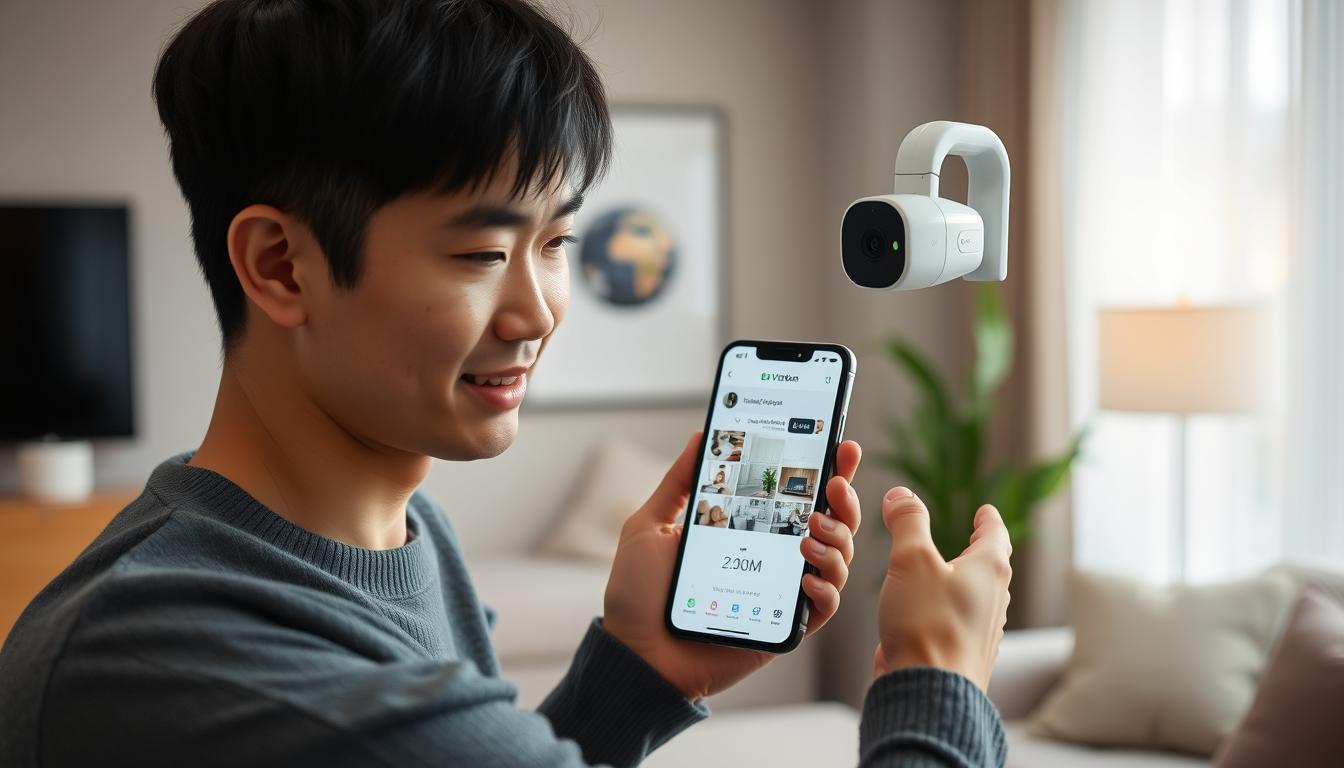
Ever thought about how safe your home is when you’re not there? Today, linking security cameras to your phone is key for keeping an eye on things. It’s now easy to connect your cameras to your smartphone, making it simple to monitor your home in Singapore. This guide will show you how to set up your security cameras on your phone, from start to finish.
Also, big names like Google Nest, Wyze, Reolink, and Ring have made special apps for their cameras. These apps make setting up your surveillance system on your phone a breeze. Want to feel more secure? Keep reading to see how easy it is to link your cameras to your phone.
Ready to learn more about the latest in CCTV tech and deals? Call CCTV Maintenance at +65 60135960 today!
Key Takeaways
- Many security camera brands have apps tailored for their products, aiding in easy connection and effectiveness.
- AlfredCamera offers a free solution for device monitoring and allows for sharing access among trusted individuals.
- Connection issues can arise from poor Wi-Fi signals or network congestion.
- Lighting conditions can affect the ability to scan QR codes for linking security cameras.
- Using manufacturer apps is recommended for security reasons over third-party options.
Understanding the Benefits of Connecting Security Cameras to Your Phone
Modern security solutions have changed how we watch over our homes and businesses. By linking security cameras to our phones, we get many benefits. These include better safety and peace of mind.
Thanks to new technology, we can manage our security in new ways. This makes our lives safer and more secure.
Real-Time Monitoring
One big plus of linking cameras to our phones is watching things live. We can see what’s happening right now. This lets us act fast if something strange happens.
Also, cameras like Reolink’s E1 Outdoor Pro and RLC-811A give us clear video. This makes our security even better.
Remote Accessibility
Being able to watch our places from anywhere is a big advantage. Whether we’re at work, traveling, or just relaxing, we can keep an eye on things.
Thanks to mobile data, Wi-Fi, or LAN, we can stay connected easily. Reolink’s cameras are great because they don’t need wires. This means we can check on our places without any hassle.
Notification Alerts
Getting alerts when something moves or looks off is super helpful. It keeps us informed and helps us react quickly.
Cameras with alert features are a reliable way to feel safe. They make sure we know right away if something’s not right.
The growth of CCTV technology shows how important it is to connect it to our phones. We get better security that fits our busy lives.
To learn more about the latest CCTV options and deals, call CCTV Maintenance at +65 60135960.
Preparing Your Security Camera for Mobile Connection
To connect your security camera to your mobile device, you need to prepare a few things. Make sure the camera and phone are compatible to avoid connection problems. These steps will help you connect your camera smoothly, making it work better with your phone.
Ensure Camera Compatibility
First, check if your security camera can connect to mobile devices. Most modern cameras, like IP security cameras, can link up with phones. Look at the manufacturer’s website or the product details to see if it works with your phone.
Check Wi-Fi Availability
A strong Wi-Fi connection is key for linking CCTV to your mobile. Make sure your camera is close to your Wi-Fi router. Some cameras, like the Reolink Argus Track, work on both 2.4 GHz and 5 GHz networks. Using both bands can improve streaming and keep your surveillance steady.
Gather Necessary Information
Before you start, gather important details that will help during setup. You might need the camera’s serial number or other IDs. Knowing the app for your camera can also make things easier. For more help on setting up cameras, check out professional services.
Contact CCTV Maintenance today at +65 60135960 to find out about the latest CCTV solutions and offers made just for you.
Downloading the Mobile App for Your Security Camera
To get the most out of your security camera, you need to download the right app. This app connects your phone to your camera, making everything work smoothly. It also gives you peace of mind.
Identifying the Correct App
Finding the right app starts with knowing your camera’s brand. Check your camera’s manual or the manufacturer’s website for details. Apps like AlfredCamera work on both Android and iOS.
You can find AlfredCamera for free on the App Store or Google Play Store. Make sure to pick the app that matches your camera model for the best results.
Installing the App on Your Device
After picking the right app, installing it is easy. Go to the App Store or Google Play Store, search for the app, and follow the instructions. Once installed, you can start setting it up.
Regular updates to the app keep it working well and securely. This is key for reliable monitoring.
For more specific advice or to explore new CCTV tech, contact CCTV Maintenance at +65 60135960 today.
How Do I Get My Security Cameras to Work on My Phone?
To get your security cameras working on your phone, follow a few key steps. First, create an account in the camera app. Then, agree to the terms and conditions. Lastly, add your camera to unlock its full features.
Creating an Account
Start by downloading the right app for your camera. Open it and choose to create a new account. Fill in your email and a strong password. This makes it easy to log in and manage your camera.
Terms and Conditions
After setting up your account, you’ll need to read the terms and conditions. These outline how your data will be used and protected. It’s important to understand these to enjoy your mobile camera setup.
Add Your Security Camera
With your account ready, it’s time to add your camera. The app will guide you, possibly through a QR code scan or camera model entry. This lets you watch your cameras from anywhere, solving your phone setup puzzle.
If setup is tough, check your network. Make sure your internet and router are working right.
Need help? Call CCTV Maintenance at +65 60135960 for the latest CCTV solutions and deals!
Using QR Codes to Connect Your Security Camera
QR code technology is becoming more popular for linking security cameras to mobile devices. It makes setting up fast and secure. This section will explore the benefits of QR code pairing and how to scan them effectively.
Advantages of QR Code Pairing
QR code pairing has many advantages:
- Speed: QR codes make setup quick, almost instant.
- Enhanced Security: QR codes are unique, keeping your connection safe.
- User-Friendly: Scanning QR codes is easy, even for non-techies.
- Direct Access: It’s simple to pair devices with cameras, skipping complex setups.
Scanning QR Codes Effectively
Here are tips for scanning QR codes well:
- Make sure your camera’s QR code is clear and visible.
- Open your app for scanning QR codes.
- Align your camera lens with the QR code on your screen.
- Follow any prompts to finish the connection.
QR codes make connecting your security camera easy and fast. If you want to improve your setup, QR code pairing is a good choice. Contact CCTV Maintenance at +65 60135960 to learn more about CCTV solutions and offers.
Connecting via Wi-Fi: A Step-by-Step Guide
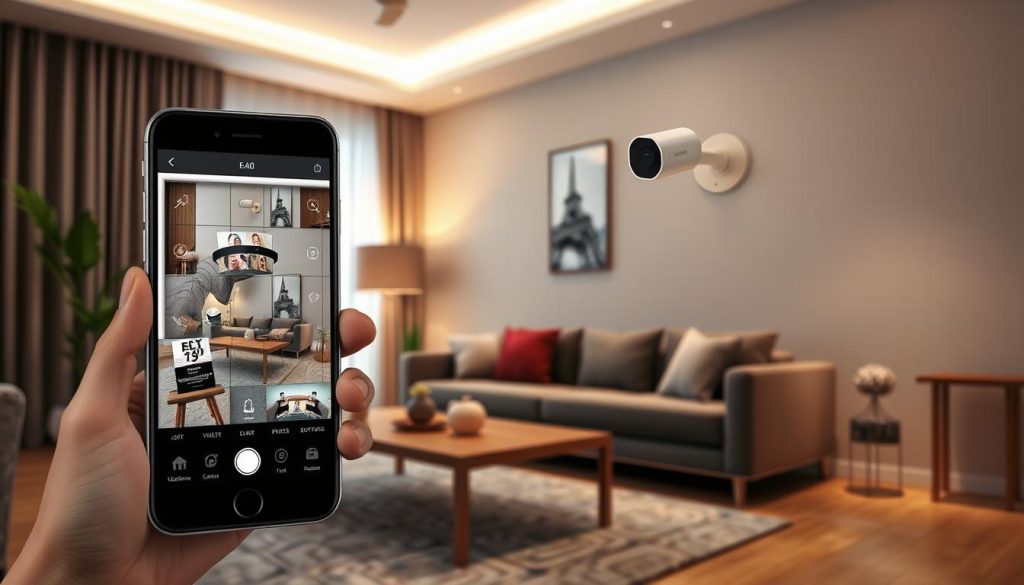
Connecting your security cameras to your smartphone is key for good surveillance. It’s easy if you follow the right steps. First, make sure both your camera and phone are on the same Wi-Fi network. This is important for smooth access to your cameras on your phone.
Ensure Both Devices Are on the Same Network
Check if your phone and camera are on the same Wi-Fi. Look at the settings on each device. If they’re not, connect one to match the other’s network. This step is critical to avoid problems.
Follow On-Screen Instructions
After connecting to the same network, open your camera app. The app will show you how to link it. Read each step carefully to set up your camera correctly.
Need help or want to learn about CCTV solutions? Call CCTV Maintenance at +65 60135960 today.
Common Issues When Connecting Security Cameras to Mobile Phones
Connecting security cameras to mobile devices can be tricky. Many users face problems that make it hard to enjoy their cameras. Knowing how to solve these issues can make a big difference.
Poor Wi-Fi Connectivity
Weak Wi-Fi signals can cause problems with camera feeds. Security cameras need a strong internet connection to work well. If your Wi-Fi is weak or has too much interference, you might have trouble connecting.
Device Compatibility Issues
Not every camera works with every phone. Some cameras might not work with older phones or certain operating systems. This is because newer cameras often need the latest technology to function properly.
Network Configuration Problems
Setting up cameras can also be a challenge. Changes in your network settings can mess up connections. If you’re having trouble, make sure your network settings are correct.
Knowing about these common problems can help you fix them quickly. If you need help or want to learn more about CCTV systems, contact CCTV Maintenance. Call us at +65 60135960 for more information on our services.
Exploring Other Pairing Methods
While Wi-Fi and QR code connections are common, exploring other methods can be beneficial. Bluetooth connectivity is great for short-range connections, providing unique advantages. Some devices also support third-party apps, which can tailor the user experience to specific needs.
Bluetooth Pairing
Bluetooth pairing is a handy alternative for connecting security cameras without Wi-Fi. It’s perfect for users close to the camera. The benefits include:
- Simple setup: Pairing your camera is often straightforward, requiring minimal steps.
- Lower power consumption: Bluetooth connections typically demand less energy than Wi-Fi, which can prolong battery life.
- Reliable performance: For short distances, Bluetooth can prove to be consistent and effective.
Third-Party App Usage
Using third-party apps is another option for pairing security cameras. This method allows for customization and compatibility with various brands, like Nest, Bosch, and Hikvision. The benefits include:
- Extended features: Some third-party apps offer enhanced functionalities, such as advanced motion detection and cloud storage options.
- User-friendly interfaces: Many apps are designed for easy navigation, making it simpler to manage and monitor your security system.
- Broader compatibility: For users with different camera models, third-party apps can provide a unified platform for control.
Consider these options when seeking optimal connectivity for your security camera system. For insightful assistance and to discover the latest CCTV solutions, contact CCTV Maintenance today at +65 60135960.
Enhancing Your Security Camera Features
Connecting your security camera to your mobile device unlocks many features. These features can greatly improve your security and make sharing with family easier.
Motion Detection Settings
Adjusting motion detection settings is key to avoiding false alarms. Smart notifications send alerts to your phone for any unusual activity. This quick alert system helps you respond fast to any threats.
Sharing Access with Family
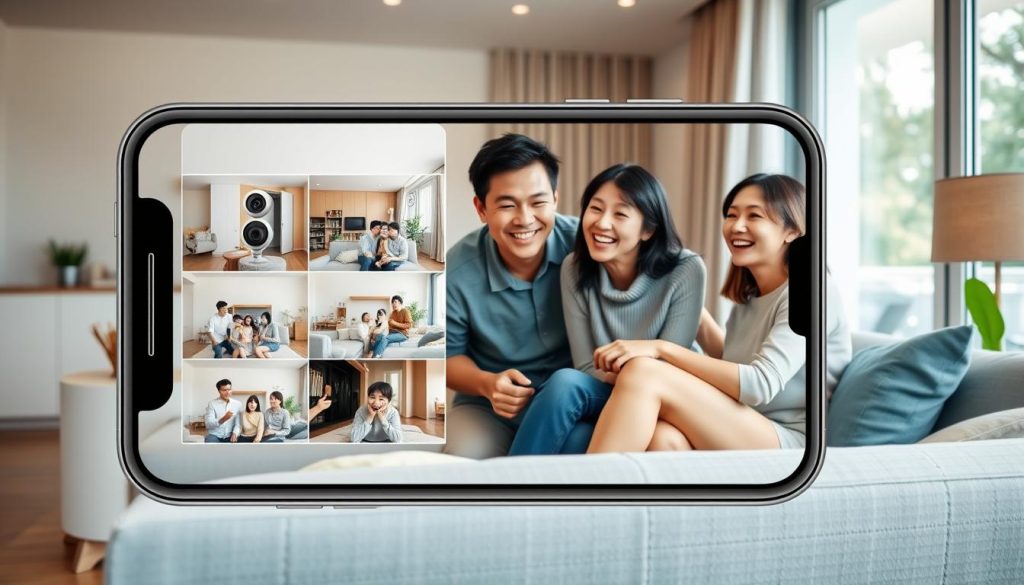
Sharing access with family members makes it easy for everyone to check on home security. Adding them to your account lets them view feeds from their devices. This way, everyone stays updated on the home’s safety, giving you peace of mind.
| Feature | Description | Benefits |
|---|---|---|
| Motion Detection | Adjust sensitivity for detecting movement. | Reduces false alarms and enhances security response. |
| Notification Alerts | Receive instant alerts for motion or sound detection. | Provides timely information to take action when needed. |
| Two-Way Audio | Communicate through a built-in speaker and microphone. | Facilitates interaction with visitors or deter intruders. |
| Cloud Storage | Access recordings stored in the cloud remotely. | Ensures secure and easy retrieval of footage. |
For the best results and more info, contact CCTV Maintenance at +65 60135960. They offer the latest CCTV solutions and services tailored to your needs.
Troubleshooting Connection Problems
Dealing with connection issues is key for users facing problems with their security cameras. Network stability is a big concern. It can really impact how well your camera system works. Try moving your camera closer to the router or boost the Wi-Fi signal to solve these problems.
Network Stability Challenges
Stable networks are essential for smooth remote viewing. Weak Wi-Fi or network disturbances can cause trouble. To fix this:
- Move your camera for a better Wi-Fi signal.
- Use Wi-Fi extenders or boosters if needed.
- Look out for interference from other devices.
Fixing these issues can make your system more reliable. This ensures your video surveillance is always accessible.
Checking App Updates
Keeping your security camera app up to date is important. Old software can cause problems or block important features. Here’s how to check for updates:
- Open the app store on your device.
- Search for your security camera app.
- Download and install any available updates.
Staying current with app updates keeps your system running smoothly. It improves your camera’s performance and ease of use.
Need help with connection issues? Contact CCTV Maintenance at +65 60135960. Learn about our CCTV solutions and offers.
Maximizing Accessibility with Cloud Storage
Adding cloud storage to your security cameras makes things easier and more convenient. You can watch recorded videos from anywhere, giving you peace of mind. Cloud solutions are key for keeping an eye on things and getting to important footage fast.
Benefits of Cloud Integration
Cloud storage brings many benefits to security management:
- High-definition video ensures clear images for better monitoring.
- Live video feeds are always available through mobile apps, for constant watch.
- Free cloud storage from camera makers makes storing footage easy.
- Encrypted storage keeps your videos safe from unauthorized access.
- Free storage for a few days lets you catch important moments.
- Remote access lets you watch footage anytime, anywhere with internet.
Setting Up Cloud Storage Options
Setting up cloud storage is easy to do:
- Sign up for cloud storage with your camera provider.
- Integrate your camera system with the cloud service by following the prompts.
- Customize alarms and smart alerts to fit your security needs.
- Use motion detection to focus on important areas for better surveillance.
Using advanced cloud options makes accessing video feeds easier. It also strengthens your security setup. With two-way audio, the system meets various security needs, fitting any setting. For more on cloud solutions and CCTV tech, call CCTV Maintenance at +65 60135960 for the latest info.
Conclusion
Connecting your security cameras to your mobile phone is key for a strong security system. Today’s technology makes it easy to link most cameras, like IP cameras, to your phone. This lets you watch and control your cameras from anywhere, boosting your security.
Choosing the right camera is important. Make sure it works with your phone’s system. Cameras like the ZOSI C296 and ZOSI W4 Pro have great features. They offer clear video, AI detection, and good night vision.
Using cloud storage can also help you see your cameras better when you’re not home. If you want to improve your security setup, contact CCTV Maintenance at +65 60135960. They can help you find the best security for your place.
FAQ
How do I get my security cameras to work on my phone?
To connect your security cameras to your phone, first check if they’re compatible. Download the right app for your camera brand. Then, create an account and follow the app’s instructions to add your camera.Make sure your camera and phone are on the same Wi-Fi network. This will help them work smoothly together.
What should I do if my security camera app keeps crashing?
If your app crashes, update it to the latest version. If problems continue, try clearing the app cache. Restart your phone and check your internet connection.If these steps don’t help, try uninstalling and reinstalling the app.
Can I use multiple mobile devices to access my security cameras?
Yes, many systems let you use multiple devices to watch your cameras. You can invite others through email or create family accounts in the app.
What features should I look for in phone-compatible security cameras?
Look for high-resolution video, two-way audio, and night vision. Also, check for motion alerts, cloud storage, and easy app integration.Make sure the camera can be viewed remotely and has advanced settings for better security.
How can I troubleshoot connectivity issues with my security cameras?
First, check your Wi-Fi connection. Ensure both devices are connected to the same network. Look for error messages in the app.Try moving your camera for better signal strength. Restart your router and camera. Update the app for the best performance.
Is it possible to connect my security camera using Bluetooth?
Yes, some cameras support Bluetooth for short-range connections. Check your camera’s manual or app for Bluetooth support. Follow the pairing instructions to connect your device.
What are the benefits of using cloud storage for my security camera footage?
Cloud storage makes it easy to access your footage from anywhere. It’s secure and prevents data loss if your camera is damaged. It also offers more storage and makes monitoring your property easier.
Source Links
- https://alfred.camera/blog/how-to-connect-security-cameras-to-phone/
- https://surelockkey.com/blog/how-do-i-connect-my-security-camera-to-my-phone/
- https://reolink.com/blog/security-camera-linked-to-phone-3-things-you-should-know/?srsltid=AfmBOoqhhDIRIH9pRN6zNgVmhBc3fxFo7dp4oaSkm0x_TCZUF4XcXwUc
- https://upcomingsecurity.co.uk/security-guides/cctv-camera-guides/how-to-connect-cctv-to-phone/
- https://www.areaspy.co.ke/how-do-i-connect-my-cctv-camera-to-my-phone/?srsltid=AfmBOopNAadL0c7Q1KW4LGRdO2a7FYyxeu2u2HaR0R1F0deh2xMV4zn1
- https://reolink.com/blog/how-to-connect-wifi-camera-to-mobile/?srsltid=AfmBOor8Raxer3ZqDeDzysR05DFzAr83jegcz_mROCER_IzFUZNkuWsH
- https://montavue.com/blogs/news/how-to-connect-security-camera-to-phone-beginners-guide?srsltid=AfmBOoovn_DVvhbBav0QiDaGCpRjB4jzGOLgF1j71HR6KyzBK20HnhJb
- https://montavue.com/blogs/news/how-to-connect-security-camera-to-phone-beginners-guide?srsltid=AfmBOoo4n4OdFcMnobkaMc6nTfJHdBsSDuoOsuHZJridUW_9wa9flOtS
- https://www.honor.com/uk/blog/how-to-connect-cctv-camera-to-cell-phone/?srsltid=AfmBOoqg9VUY44Ri7PuXIIuyc_3uC3jCEBYVye9JhqAZZFOMMf83K54c
- https://montavue.com/blogs/news/how-to-connect-security-camera-to-phone-beginners-guide?srsltid=AfmBOoqTLoSqZBj38A9RsBbBySQ1wcT8O3_blIqElpMLBJaj8HJcl3kT
- https://www.cctvnz.co.nz/blog/how-to-connect-cctv-to-your-smartphone
- https://www.westerndigital.com/en-in/solutions/cctv/blog/how-to-connect-your-cctv-camera-to-your-phone
- https://montavue.com/blogs/news/how-to-connect-security-camera-to-phone-beginners-guide?srsltid=AfmBOoreqk0N6dLRsGt8kWozu6od96eB5hR7TKaG-o_EepT3Ph8rDObE
- https://reolink.com/blog/how-to-connect-wifi-camera-to-mobile/?srsltid=AfmBOopr3tnWnSNm-seeRteBpKC4axIlLUgaAdNte96S4e3hqzcW_PC1
- https://montavue.com/blogs/news/how-to-connect-security-camera-to-phone-beginners-guide?srsltid=AfmBOorOPQon6QUSYnLYMQJnXY1auIkBAeiPaxQB_m00rFrf8Crferqq
- https://www.honor.com/uk/blog/how-to-connect-cctv-camera-to-cell-phone/?srsltid=AfmBOopU2SJ1Gy3xw7rhhc3EHpwuuA7Gjfk8uGrMIonZNE4QeiubXw5-
- https://montavue.com/blogs/news/how-to-connect-security-camera-to-phone-beginners-guide?srsltid=AfmBOooxWSZG2mVVCLkeBbEQHI2L1jLn3nyjXR5E3TMibIKv1hdRM1Bv
- https://www.honor.com/ae-en/blog/how-to-connect-cctv-camera-to-cell-phone/?srsltid=AfmBOoq0FuDHyylVtA4W-QwITIcoeEl1r1fvNzdfJTq6W3yGapbFYFa7
- https://reolink.com/blog/how-to-connect-wifi-camera-to-mobile/?srsltid=AfmBOooTytYnxWzyj-UJti7qV9U3SfW2JRTnMaBAUNa82lrQBng4Ws5h
- https://www.gensecurity.com/blog/can-i-connect-my-security-cameras-to-my-phone
- https://www.honor.com/za/blog/how-to-connect-cctv-camera-to-cell-phone/
- https://reolink.com/blog/security-camera-wont-work/?srsltid=AfmBOoqTIqt_qCXVzsifp0Xd3K4A2JvMA8-d-azNmhkQZ1Y0K3xY04ov
- https://montavue.com/blogs/news/how-to-connect-security-camera-to-phone-beginners-guide?srsltid=AfmBOopjxry3sE9lJiaZArx2QxfVzktFVToyRsQGy1JkuwxUOnIuyhMH
- https://vocal.media/01/ways-to-integrate-security-cameras-into-your-security-system-yxf340olo
- https://vicosafe.com/blogs/vicohome/transform-your-smartphone-into-a-security-command-center-maximizing-your-wifi-camera-with-a-free-mobile-app?srsltid=AfmBOoo-37SVCESxuuE6Nb0N0kW3ICFL3jSTG3TGmOoR2pb3bTc_Rj7_
- https://montavue.com/blogs/news/how-to-connect-security-camera-to-phone-beginners-guide?srsltid=AfmBOopkIfh1mb0WUZxZZyQRvJU6qaw0Tz6nUuy-ow8Yzbq59e8z9gZu
- https://blog.zositech.com/security-camera-linked-to-phone/


